Running an Android app on a computer sounds straightforward until a game starts lagging, an app refuses to install, or the emulator you downloaded lacks the features you actually need. Choosing the right tool can make the difference between a smooth experience and hours spent troubleshooting compatibility issues.
Google’s Android ecosystem reaches more than 3 billion active devices worldwide, spanning a broad range of apps, games, and hardware configurations. For users who want to access Android apps on a computer, Android emulators offer a practical way to run a virtual Android environment without constantly switching between devices.
However, not all Android emulators serve the same purpose. Some prioritize gaming performance, keyboard mapping, and multiple game instances. Others focus on app development, debugging, automated testing, and compatibility across Android versions.
This guide compares the best Android emulators for Windows and Mac, explains what each tool does well, and helps you choose the right Android emulator software for gaming, everyday apps, or professional development.
Quick Comparison: Best Android Emulators
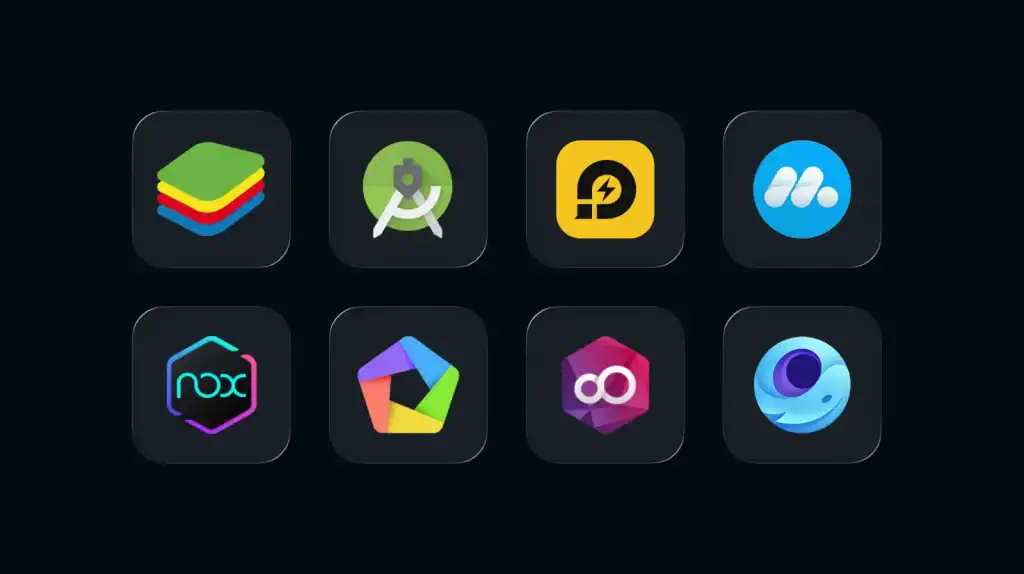
| Android emulator | Best for | Supported platforms | Pricing |
|---|---|---|---|
| BlueStacks | Gaming and everyday Android apps | Windows and supported Mac configurations | Free, with optional paid offerings |
| Android Studio Emulator | App development and testing | Windows, macOS, and Linux | Free |
| LDPlayer | PC gaming and customizable controls | Windows | Free |
| MuMuPlayer | Mobile gaming on a computer | Windows and supported Mac configurations | Free |
| NoxPlayer | Custom controls and gaming tools | Windows and selected Mac configurations | Free |
| MEmu Play | Multi-instance gaming | Windows | Free |
| Genymotion | Professional app testing | Windows, macOS, Linux, and cloud options | Free and paid options, depending on use |
| GameLoop | Supported mobile games on PC | Windows | Free |
Platform availability, Android versions, system requirements, and pricing can change. Check each provider’s current documentation before installing an emulator.
1. BlueStacks: Best Android Emulator for Gaming and Everyday Apps
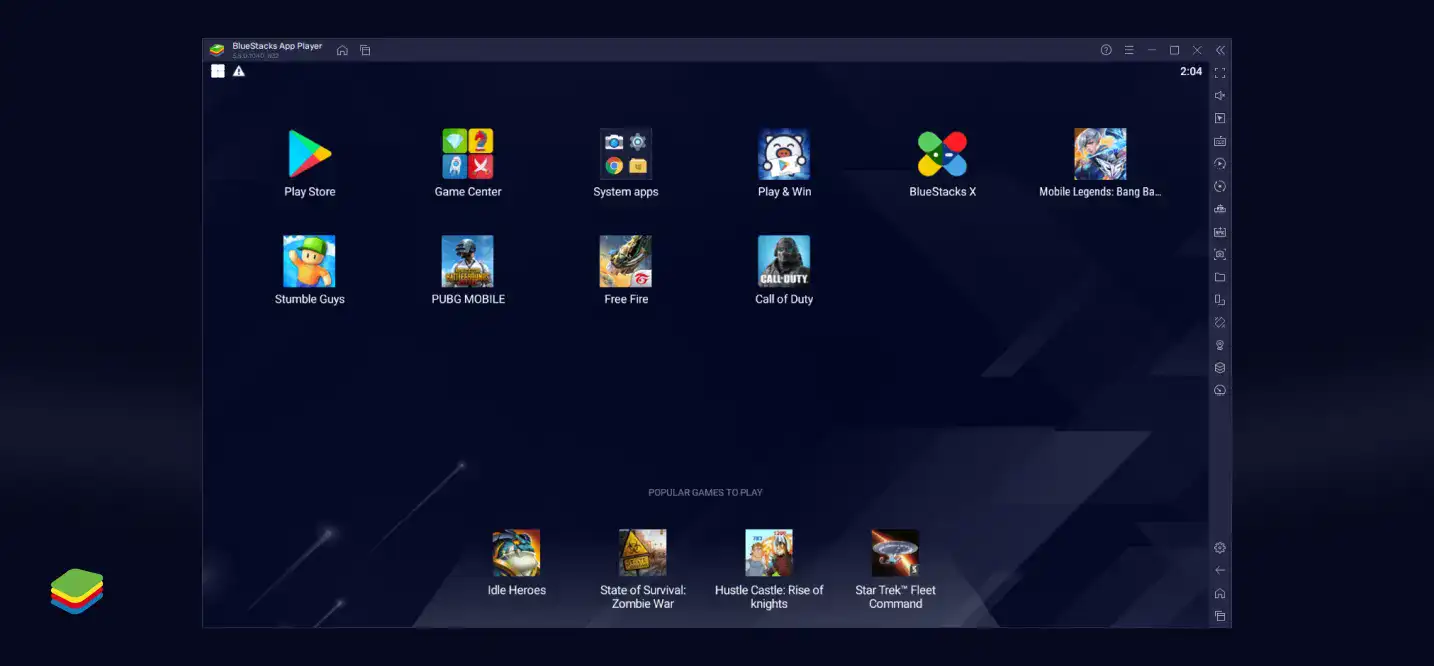
BlueStacks is one of the most widely recognized Android emulators for PCs. It lets users run supported Android games and applications on a desktop or laptop, with features designed to make mobile experiences easier to control using a keyboard and mouse.
For people searching for an Android emulator for gaming or general app use, BlueStacks is a practical starting point.
Key Features
- Keyboard and mouse controls for supported games
- Customizable control mapping
- Multiple emulator instances
- Performance settings for allocating system resources
- Support for installing compatible apps through available app stores or APK files
BlueStacks is particularly useful for games that benefit from precise input, larger displays, and configurable controls. Multi-instance functionality can also help users run separate game sessions, although doing so increases CPU and memory demands.
The main drawback is resource consumption. Running demanding games, high-resolution settings, or several instances simultaneously can slow down a computer with limited memory or an older processor. App compatibility can also vary, and some features differ between operating systems.
Best for: Gamers and users who want a general-purpose Android emulator for PC.
Before downloading, review the provider’s BlueStacks system requirements to check whether your computer meets the minimum and recommended specifications.
2. Android Studio Emulator: Best for App Developers and Testing
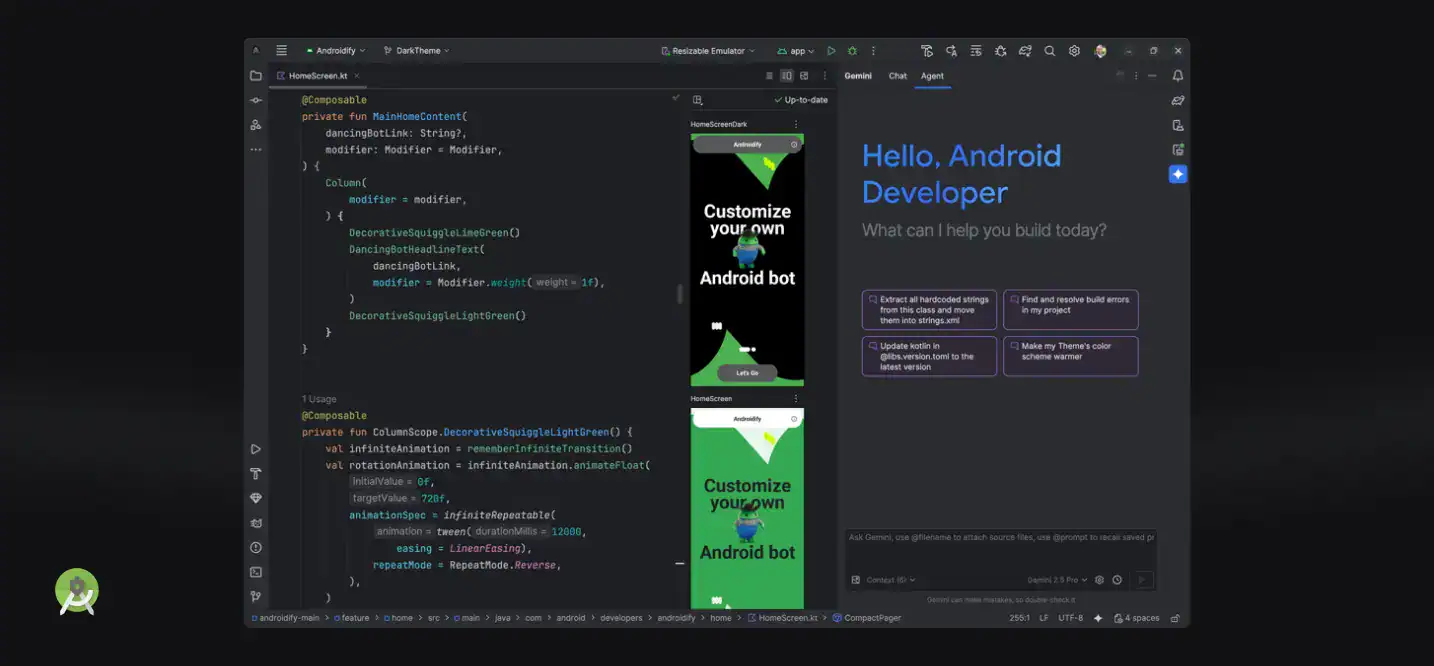
The Android Studio Emulator is Google’s official option for running virtual Android devices during development. Unlike gaming-focused Android emulator apps, it is built primarily to help developers create, debug, and test applications in controlled environments.
It is particularly useful when a team needs to check how an app behaves across different Android API levels, screen sizes, device profiles, and system configurations.
Key Features
- Android Virtual Device (AVD) creation and management
- Configurable Android system images and API levels
- Virtual device profiles for phones, tablets, and other supported form factors
- Location and sensor simulation
- Integration with Android Studio and Android Debug Bridge (ADB)
- Support for debugging and automated testing workflows
Developers can configure an Android Virtual Device to represent a particular screen size, Android version, and hardware profile. This helps uncover layout problems, permission issues, and compatibility bugs before an application reaches real users.
The emulator is also useful for developers working with Kotlin or Java. If you’re deciding between the two languages, this Kotlin vs. Java for Android app development comparison can help clarify how they fit into an Android project.
The main limitation is that the Android Studio Emulator can demand substantial system resources. Google recommends a computer with at least 16 GB of RAM for the best experience, although actual performance depends on the host machine, virtual device configuration, and workload.
Best for: Android developers, QA engineers, and teams testing apps across multiple virtual devices.
Google provides the official Android Emulator documentation, including setup instructions, system requirements, and troubleshooting guidance.
3. LDPlayer: Best for Android Gaming on Windows
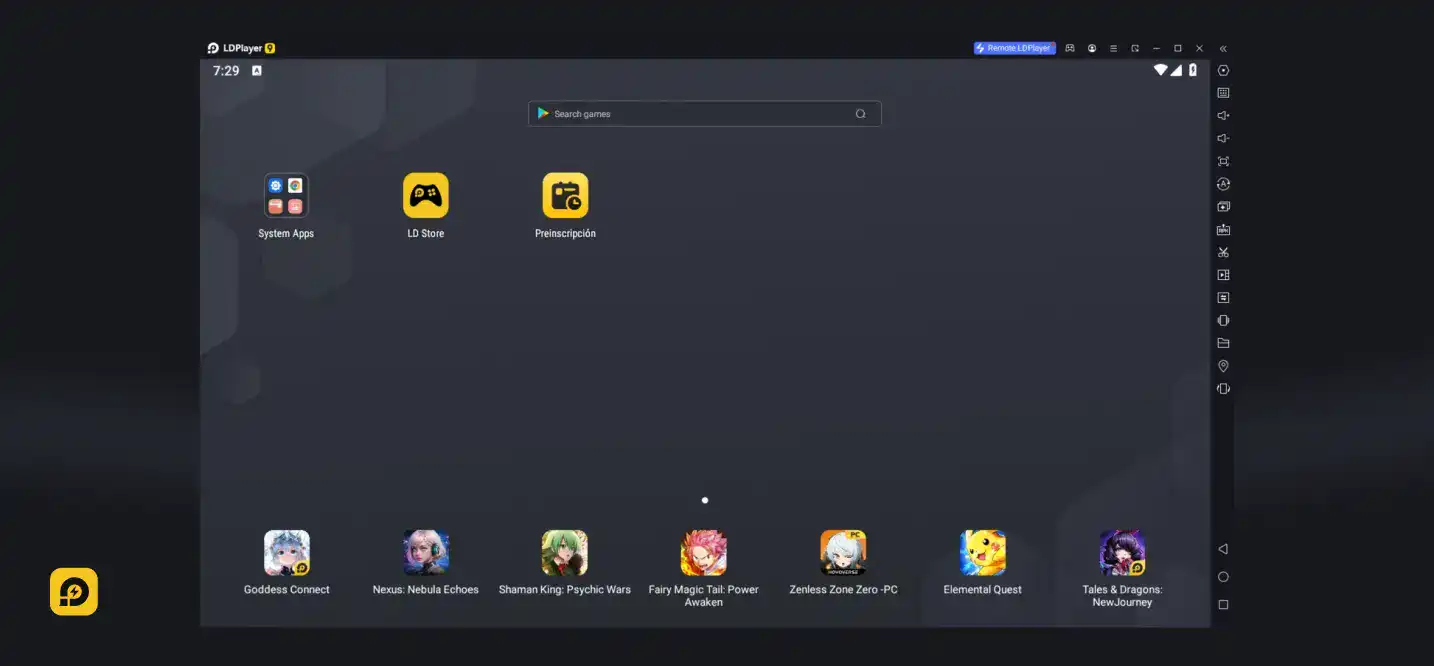
LDPlayer is a Windows-focused Android emulator designed for playing mobile games on a PC. It emphasizes gaming controls, performance configuration, and the ability to run multiple instances.
For users searching for the best Android emulators for PC gaming, LDPlayer is worth considering, particularly if their main goal is to play supported mobile titles rather than develop apps.
Key Features
- Keyboard and mouse mapping
- Customizable game controls
- Multiple emulator instances
- Performance settings for CPU, memory, and graphics
- Support for compatible Android games and APK installation
Its control mapping can make games that rely on touch input easier to play with a keyboard and mouse. Multiple instances are also useful for users who need separate game sessions or accounts, subject to each game’s rules.
However, performance depends on the computer’s hardware and the game being played. Compatibility may differ by game, Android version, and graphics configuration. LDPlayer is not a substitute for a development-focused Android virtual device when you need detailed debugging or systematic compatibility testing.
Best for: Windows users who primarily want to play supported Android games.
Check the LDPlayer PC requirements before installation, especially if you’re using an older computer.
4. MuMuPlayer: An Option for Mobile Gaming on PC and Mac
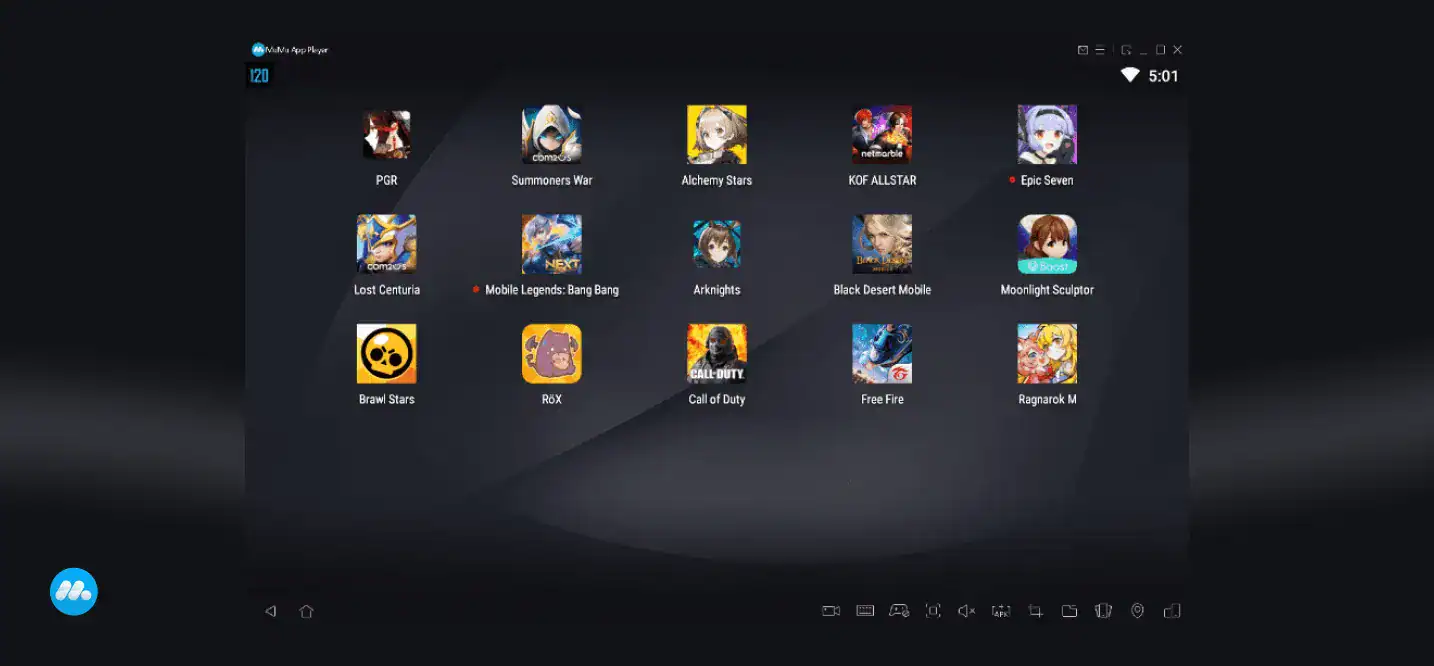
MuMuPlayer is another gaming-focused Android emulator. It aims to bring supported mobile games to desktop hardware, with configurable controls and performance settings.
It may suit users comparing Android emulators for gaming who want an alternative to BlueStacks or LDPlayer.
Key Features
- Keyboard and mouse control options
- Graphics and performance configuration
- Support for compatible Android games
- Multi-instance features in supported versions
- Availability on selected desktop platforms
The experience depends on the specific MuMuPlayer version and operating system. Windows and Mac compatibility should be checked carefully, especially on newer Apple silicon devices. Don’t assume that every feature or game works identically across platforms.
MuMuPlayer is intended primarily for gaming, so developers who need to inspect app logs, reproduce device-specific bugs, or test different Android API levels may find Android Studio or Genymotion more suitable.
Best for: Players who want another gaming-oriented emulator to compare against other PC options.
Visit the official MuMuPlayer website to confirm the supported operating system, download the appropriate installer, and review the current features.
5. NoxPlayer: Best for Custom Controls and Gaming Tools
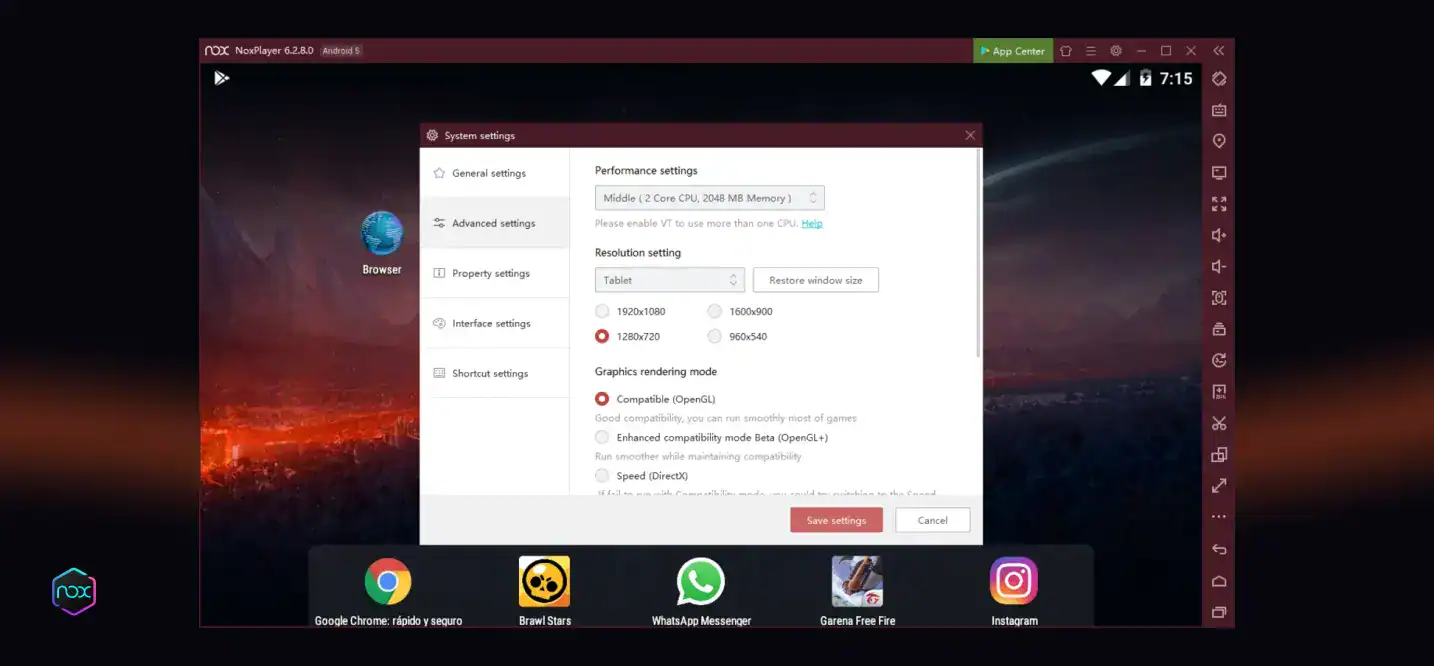
NoxPlayer is a gaming-oriented emulator that provides control customization and other tools for running compatible Android games on a computer.
It can be useful when the default touch-based controls of a mobile game feel awkward on a desktop or when users want more flexibility over how they interact with a game.
Key Features
- Keyboard and mouse mapping
- Customizable controls for supported games
- Multi-instance functionality
- Additional control and recording features in supported versions
- APK installation for compatible applications
NoxPlayer’s customization options can make certain games more comfortable to play. However, features may vary by version, and running several instances can increase resource use.
As with any third-party Android emulator software, download it from the official provider and review the installation options. Pay attention to optional software, requested permissions, and updates rather than assuming every installer or download mirror is equally trustworthy.
Best for: Users who prioritize customizable controls and gaming utilities.
You can find installation information on the official NoxPlayer support site.
6. MEmu Play: Best for Multi-Instance Gaming
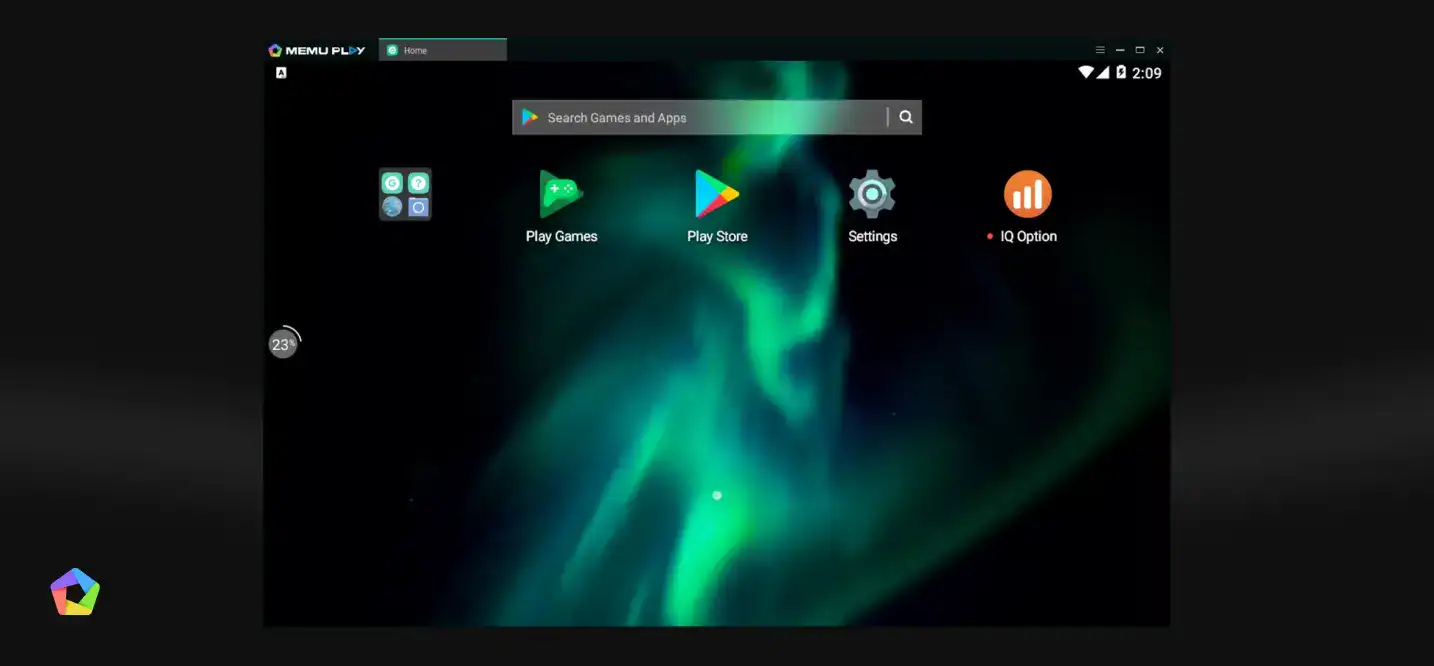
MEmu Play is an Android emulator for Windows that focuses on running mobile games on a computer. Its multi-instance functionality makes it worth considering for users who want to maintain separate sessions or run compatible games in parallel.
Key Features
- Multiple virtual Android instances
- Keyboard and mouse mapping
- Configurable performance settings
- Support for compatible apps and games
- APK installation options
Multi-instance support can be useful for managing different game accounts or testing how a game behaves under separate configurations. However, each active instance consumes system resources, so running several simultaneously can affect performance.
MEmu Play is primarily aimed at consumer use and gaming. It may not offer the same development workflow, debugging integration, or detailed virtual device configuration available in Android Studio.
Best for: Windows users who want to run multiple Android gaming sessions.
Check the official MEmu Play website for its latest installer, features, and system requirements.
7. Genymotion: Best for Professional Android App Testing
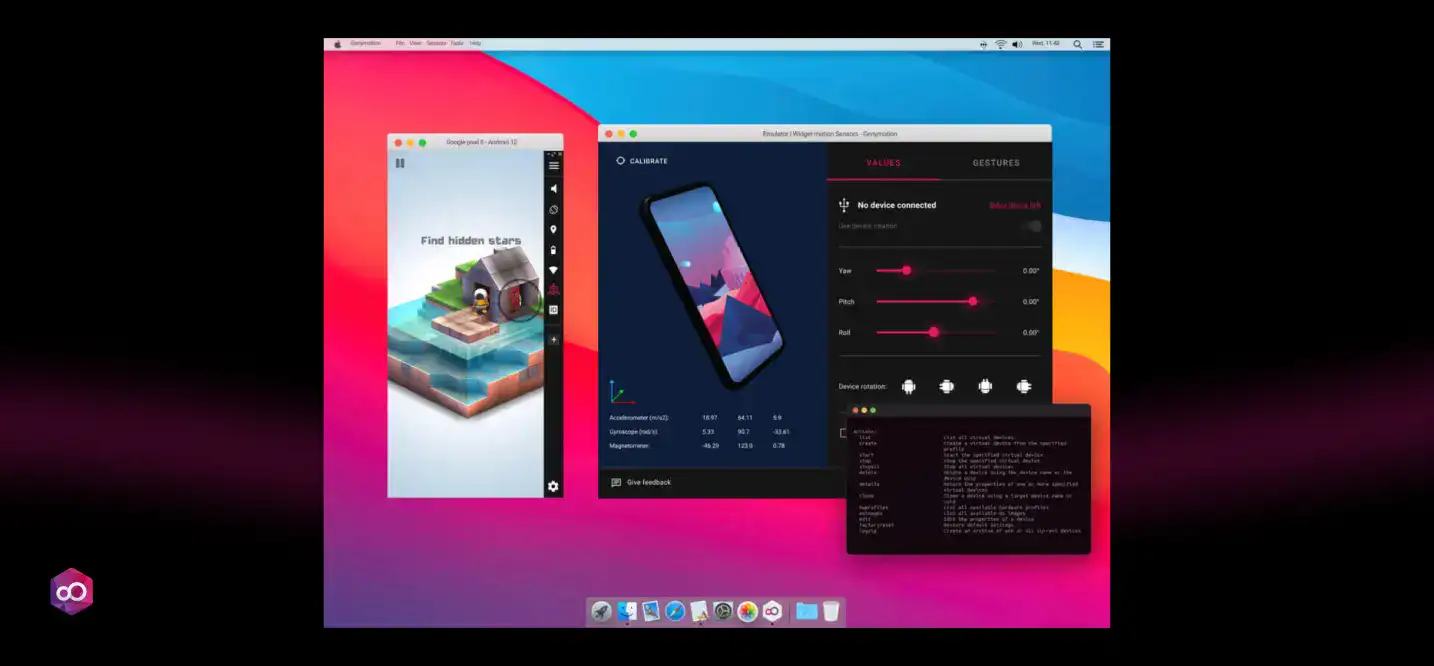
Genymotion is an Android emulation platform aimed at developers, testers, and technical teams. Its desktop and cloud options can support workflows that require configurable virtual devices rather than gaming-focused features.
For businesses building Android applications, Genymotion can help reproduce software behavior across selected device configurations and integrate virtual devices into testing workflows.
Key Features
- Configurable virtual Android devices
- Device and sensor simulation
- Integration with development and testing tools
- ADB connectivity
- Desktop and cloud-based testing options
Genymotion can be useful for checking how an app responds to different configurations, reproducing bugs, and incorporating virtual devices into a QA process. Teams should verify the specific Android versions, features, integrations, and licensing options available in their chosen edition.
Its focus is different from that of gaming emulators. Genymotion isn’t generally the first choice for someone who simply wants to play a mobile game with a keyboard and mouse. Desktop use also has hardware requirements, so check those before setting it up.
Best for: Developers and QA teams that need configurable virtual Android environments.
Review the Genymotion Desktop documentation for supported systems, hardware requirements, and installation instructions.
8. GameLoop: Best for Supported Mobile Games on PC
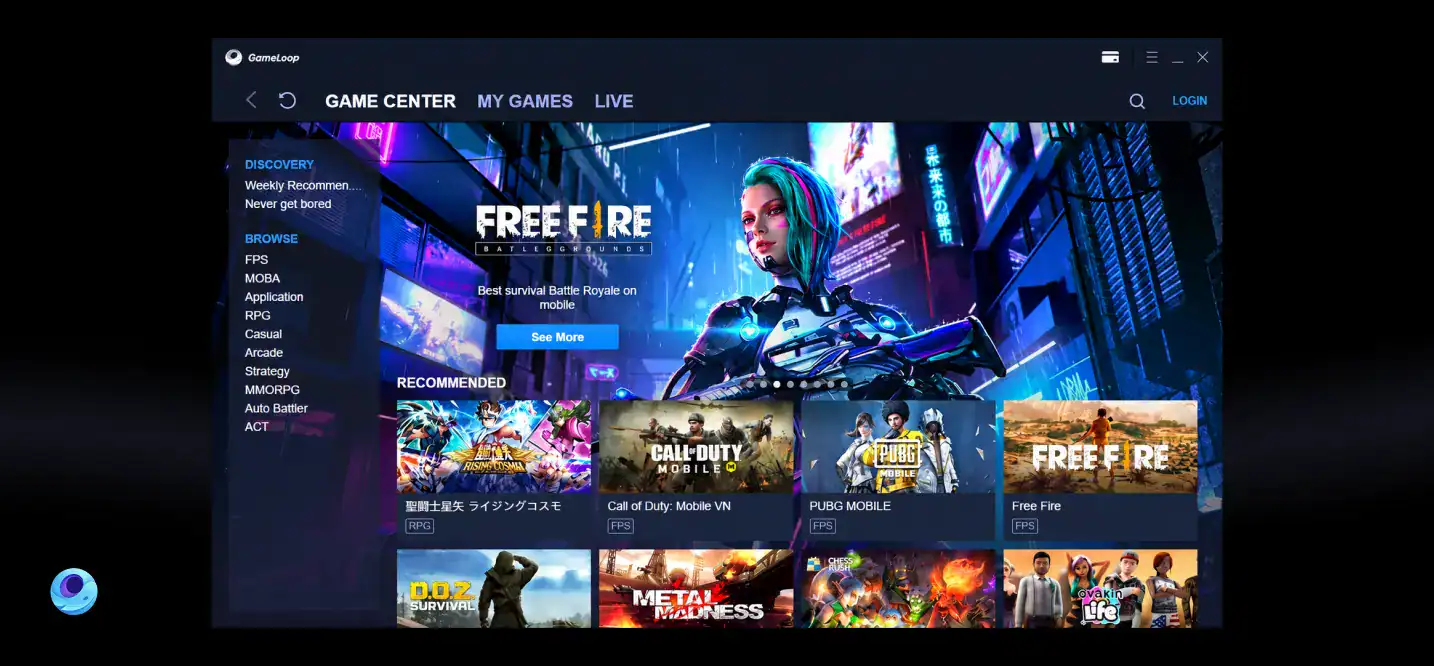
GameLoop is a Windows-based gaming platform and Android emulator associated with supported mobile games. It’s worth evaluating if you mainly want to play a title that GameLoop specifically supports.
Key Features
- Keyboard and mouse controls for supported games
- Game-focused configuration
- Desktop access to selected mobile titles
- Compatibility optimizations for supported games
The key consideration is game compatibility. An emulator that performs well with one title may not support another, and game updates can affect functionality. Before installing it, confirm that your preferred game is available and supported.
GameLoop is not designed to replace a full Android development environment. If your goal is to test an app’s behavior across Android API levels or inspect application logs, a development-oriented emulator is usually a better fit.
Best for: PC gamers who want to play mobile games supported by GameLoop.
Visit the official GameLoop website to check supported titles and current installation details.
How to Choose the Best Android Emulator
The best Android emulator depends on what you need it to do. Before choosing one, compare the following factors.
1. Operating System and CPU Compatibility
Start by checking whether the emulator supports your operating system and processor architecture. Some tools are Windows-only, while others support macOS or Linux. Mac compatibility can also differ between Intel-based computers and Apple silicon devices.
Confirm the supported operating system version and any virtualization requirements before downloading. A tool that runs on your computer in principle may still perform poorly if its hardware acceleration isn’t available.
2. RAM, CPU, and Graphics Performance
Android emulators need resources to run the virtual Android environment alongside your regular desktop applications. The amount of RAM and processing power you need depends on the emulator, Android version, graphics settings, and number of running instances.
For example, BlueStacks lists 4 GB of RAM as a minimum requirement and recommends 8 GB or more for a better experience. Android Studio’s emulator has higher recommended specifications for its best experience.
If your computer has limited memory, start with one emulator instance, close unnecessary applications, and use moderate graphics settings. Don’t allocate every available CPU core or all system memory to a virtual device.
3. Google Play Services and App Compatibility
Not every Android emulator includes the same system components. Some virtual devices provide Google Play support, while others use different Android system images or depend on separate installation methods.
This matters if an app relies on Google Play Services, Google sign-in, push notifications, location features, or licensing checks. Some games and streaming applications also use compatibility checks or anti-cheat systems that can prevent them from running in an emulator.
Before choosing, verify that the apps you need are supported. A tool with excellent performance is still a poor choice if it cannot run your target application.
4. Features and Development Tools
Gaming users may prioritize keyboard mapping, controller support, graphics configuration, and multi-instance controls. Developers are more likely to need Android Virtual Device (AVD) profiles, Android system images, Android Debug Bridge (ADB), sensor simulation, and automated testing support.
If you’re comparing the wider range of mobile app development technologies and tools, consider how the emulator fits into the rest of your workflow rather than evaluating it in isolation.
5. Pricing, Ads, and Privacy
Many Android emulators offer free versions, but the business model and feature restrictions vary. Some may display promotions, offer paid upgrades, or include optional installation components.
Read the current licensing terms and privacy policy before using an emulator, particularly on a work computer. For company projects, also check whether the license permits commercial use and whether the tool meets your organization’s security requirements.
Android Emulators for App Development and Testing
Android emulators are useful for development because they let teams test an app without needing a separate physical phone for every configuration. They can help catch problems early, but they work best as one part of a broader testing strategy.
1. Configure an Android Virtual Device
With Android Studio, you can create an Android Virtual Device (AVD) that specifies a device profile, Android API level, system image, and other configuration details.
A developer might create separate virtual devices to test:
- Different screen sizes and resolutions
- Multiple Android API levels
- Permission requests and app startup behavior
- Location and sensor-dependent features
- Network conditions and connectivity failures
- Graphics behavior and orientation changes
The right configurations depend on your app’s supported devices and minimum Android version. Review the Android Virtual Device setup guide for the available configuration options.
2. Install an APK on an Emulator
An APK can be installed through the emulator interface or Android Debug Bridge, provided the application is compatible with the virtual device.
For example, after starting an emulator and ensuring ADB can detect it, you can use this command:
adb install app-debug.apk
Replace app-debug.apk with the actual path or filename of your APK. If multiple devices or emulator instances are connected, specify the target device to avoid installing the app on the wrong one.
ADB can also help developers inspect logs, install updated builds, and troubleshoot application behavior. Google’s ADB command-line documentation explains how to use the tool.
3. Test Across Android Versions and Device Conditions
A successful launch on one emulator doesn’t prove an app will work everywhere. Developers should test the configurations most relevant to their users, including different API levels, screen sizes, network conditions, and permissions.
Automated testing tools can extend this process. Appium supports mobile application automation, while Espresso is used for Android UI testing. The right approach depends on your technology stack and testing requirements.
For apps built with React Native, the React Native mobile app development guide provides useful context for the framework. Emulator testing remains important, but it should reflect the actual platforms and device configurations your app supports.
4. Don’t Rely on Emulators Alone
Virtual devices cannot reproduce every physical hardware condition. Camera behavior, Bluetooth connectivity, biometric authentication, performance under thermal stress, and manufacturer-specific differences may require real-device testing.
A practical workflow combines Android emulators for repeatable early checks with physical devices or cloud-based device labs for broader validation. Google also recommends testing on actual hardware before releasing an application. Its guide to running apps on hardware devices explains how to connect and debug a physical Android device. This matters throughout the Android development process, from initial implementation through QA and release preparation.
How to Fix a Slow Android Emulator?
If your Android emulator is lagging, taking too long to start, or freezing during app use, work through these checks before switching tools.
1. Enable Hardware Virtualization
Many emulators rely on hardware virtualization to run efficiently. Check that the required virtualization feature is enabled in your computer’s firmware and that the emulator supports the available hypervisor.
The exact setup depends on your operating system and software. Google’s emulator acceleration guide explains the supported acceleration options.
2. Adjust RAM and CPU Allocation
Giving an emulator too few resources can cause sluggish performance, but assigning too much can leave your host operating system struggling. Start with the recommended configuration for your emulator and adjust it gradually.
If you’re running multiple Android emulator instances, close the ones you don’t need. Each additional instance increases the total memory and processing load.
3. Check Graphics Settings
Graphics acceleration can improve performance, but compatibility varies with the computer’s GPU and drivers. If an emulator crashes or renders graphics incorrectly, update your drivers where applicable and test another supported graphics mode.
For games, lower the resolution or graphics quality to see whether performance improves.
4. Reduce Background Activity
Close resource-heavy applications, browser tabs, and unnecessary background processes. If your system is already under pressure, even a well-configured emulator may run poorly.
Also make sure your computer has sufficient free storage. Virtual devices need space for system images, application files, and user data.
5. Restart or Recreate the Virtual Device
A virtual device may become unstable after an update or configuration change. Try a normal restart first. If the problem persists, a cold boot or a fresh virtual device may help.
Before wiping an emulator or deleting its data, back up any files or test information you need to keep.
Are Android Emulators Safe to Use?
Android emulators can be safe when downloaded from reputable providers and configured carefully. However, installing an emulator doesn’t automatically make every app, APK, or third-party download trustworthy.
Use these precautions:
- Download installers from the provider’s official website.
- Avoid unofficial APK mirrors unless you can verify their authenticity.
- Review optional installation components before accepting them.
- Check the permissions requested by installed applications.
- Keep the emulator and its supporting software updated.
- Avoid entering sensitive credentials into unfamiliar apps.
- Review privacy terms before using the emulator for business data.
For development teams, use test accounts and non-production data where possible. Treat downloaded APKs as untrusted until you’ve verified their source and integrity.
Final Thoughts
The best Android emulators are the ones that match your intended use. Gaming users should compare supported titles, controls, and performance, while developers need reliable virtual devices, debugging tools, and coverage across Android versions.
For a new application, emulator testing is only one part of the process. Teams also need to validate real-device behavior, resolve compatibility issues, and prepare the app for release. Understanding the wider mobile app development process can help put those testing decisions into context.
If your project requires more than basic emulator testing, Cubix can help you plan and build Android applications with the right development and QA approach. Explore the Android app development services to discuss your project’s requirements.
For broader product needs spanning multiple mobile platforms, a mobile app development agency can also help you assess the right implementation and testing strategy.
Ready to Build Your Android App? Talk to Our Team
Contact UsFrequently Asked Questions
1. What is the best Android emulator?
The best Android emulator depends on your use case. BlueStacks is a strong starting point for gaming and everyday apps, while Android Studio Emulator is designed for development and testing. LDPlayer, MuMuPlayer, NoxPlayer, MEmu Play, and GameLoop are alternatives to consider for supported games.
2. Which Android emulator is best for app developers?
Android Studio Emulator is the default choice for many Android development workflows because it supports virtual device configuration, Android API levels, debugging, and ADB integration. Genymotion is another option for teams that need configurable virtual devices or cloud-based testing.
3. Is BlueStacks safe to use?
BlueStacks can be used safely when downloaded from its official website and kept updated. As with other Android emulator software, check installation options, review permissions, and avoid installing apps from untrusted sources.
4. Do I need a powerful PC to run Android emulators?
Not necessarily. Basic workloads may run on modest hardware, but gaming, newer Android system images, and multiple instances need more resources. Check the emulator’s current requirements and enable hardware virtualization when supported.
5. Can I run Android emulators on a Mac?
Yes, several Android emulators support macOS, including Android Studio Emulator and Genymotion. Gaming-oriented options may have different Mac support depending on the product version and whether your Mac uses Intel or Apple silicon. Verify compatibility before installing.
6. How do I install an APK on an emulator?
You can often install an APK through the emulator’s interface or use ADB with a command such as adb install app-debug.apk. The APK must be compatible with the virtual device, and the installation method may differ by emulator.
7. Why is my Android emulator so slow?
Common causes include disabled hardware virtualization, limited RAM, insufficient CPU resources, graphics compatibility problems, and too many running instances. Start by checking system requirements, closing unnecessary applications, and adjusting the emulator’s performance settings.
8. Is Android Studio Emulator free?
Yes. Android Studio and its Android Emulator are available without a purchase fee. Other testing services, cloud infrastructure, or third-party tools used alongside them may have separate pricing or licensing terms.
9. Which emulator is best for gaming?
BlueStacks, LDPlayer, MuMuPlayer, NoxPlayer, MEmu Play, and GameLoop are gaming-focused options. The best choice depends on your game, computer specifications, desired controls, and compatibility requirements.
10. What are the alternatives to emulators for testing?
Physical Android devices and cloud-based device testing services are common alternatives. They can reveal hardware-specific issues that virtual environments may not reproduce. A combination of emulators, automated tests, and real devices usually provides more complete coverage than relying on one method alone.