Choosing an iOS emulator can be confusing because the tools listed under this name do very different things. Some let you play classic console games on an iPhone, while others help developers test iOS apps without buying multiple devices. A few provide access to virtualized or cloud-hosted iPhones rather than emulating iOS locally.
The distinction matters. A gaming emulator won’t help you debug a Swift app, and a desktop simulator won’t necessarily reproduce how an app behaves on a physical iPhone. Apple reported that its installed base had surpassed 2.5 billion active devices worldwide, highlighting the scale of its ecosystem and the range of devices developers may need to support.
This guide compares the best iOS emulators, simulators, and testing alternatives by use case. Whether you want to play retro games, preview an app from your PC, or test an iOS release across different devices, you’ll find the options that fit your needs and their limitations.
Best iOS Emulators at a Glance
The best option depends on what you want to run and where you want to run it. Use this table to narrow your choices before exploring the individual tools.
| Tool | Best for | Where it runs | Main limitation |
|---|---|---|---|
| Delta | Retro gaming on iPhone and iPad | Supported Apple devices | Runs supported console games, not native iOS apps |
| RetroArch | Emulating multiple gaming systems | Supported Apple and desktop platforms | Setup and core configuration can take time |
| PPSSPP | Playing PlayStation Portable games | iPhone, iPad, and desktop platforms | Focused on PSP emulation |
| Xcode Simulator | Developing and debugging iOS apps | Mac | Does not reproduce every physical-device feature |
| Appetize.io | Previewing compatible app builds in a browser | Web browser | Not a substitute for every real-device test |
| BrowserStack App Live | Manual testing on remote mobile devices | Cloud | Requires access to the service and supported devices |
| Sauce Labs | Manual and automated mobile QA | Cloud | Features depend on the selected service and plan |
| Corellium | Specialized iOS virtualization and security research | Virtualized environment | Intended for advanced technical use cases |
These tools aren’t interchangeable. Delta, RetroArch, and PPSSPP emulate gaming consoles on supported devices. Xcode Simulator models Apple devices for app development, while cloud platforms provide remote testing environments. The following sections explain which option makes sense for each task.
What Is an iOS Emulator?
An iOS emulator is commonly understood as software that recreates aspects of an iPhone or iPad environment so applications or games can run without the original hardware. However, the term is often used loosely.
There are three main categories to understand:
- Gaming emulators: Run games designed for older consoles on a supported iPhone, iPad, or computer.
- iOS simulators: Reproduce aspects of an Apple device’s operating system and interface for app development and debugging.
- Cloud-based testing platforms: Give developers remote access to physical devices or virtual testing environments through a browser or testing framework.
For example, Delta lets iPhone users play supported retro console games. Xcode Simulator lets an iOS developer run a development build in a simulated Apple device environment. A cloud testing platform can provide access to an actual iPhone without requiring the developer to own that particular model.
If you’re new to the development side, this iOS app development guide explains the broader process of building applications for Apple’s ecosystem.
iOS Emulator vs. iOS Simulator: What’s the Difference?
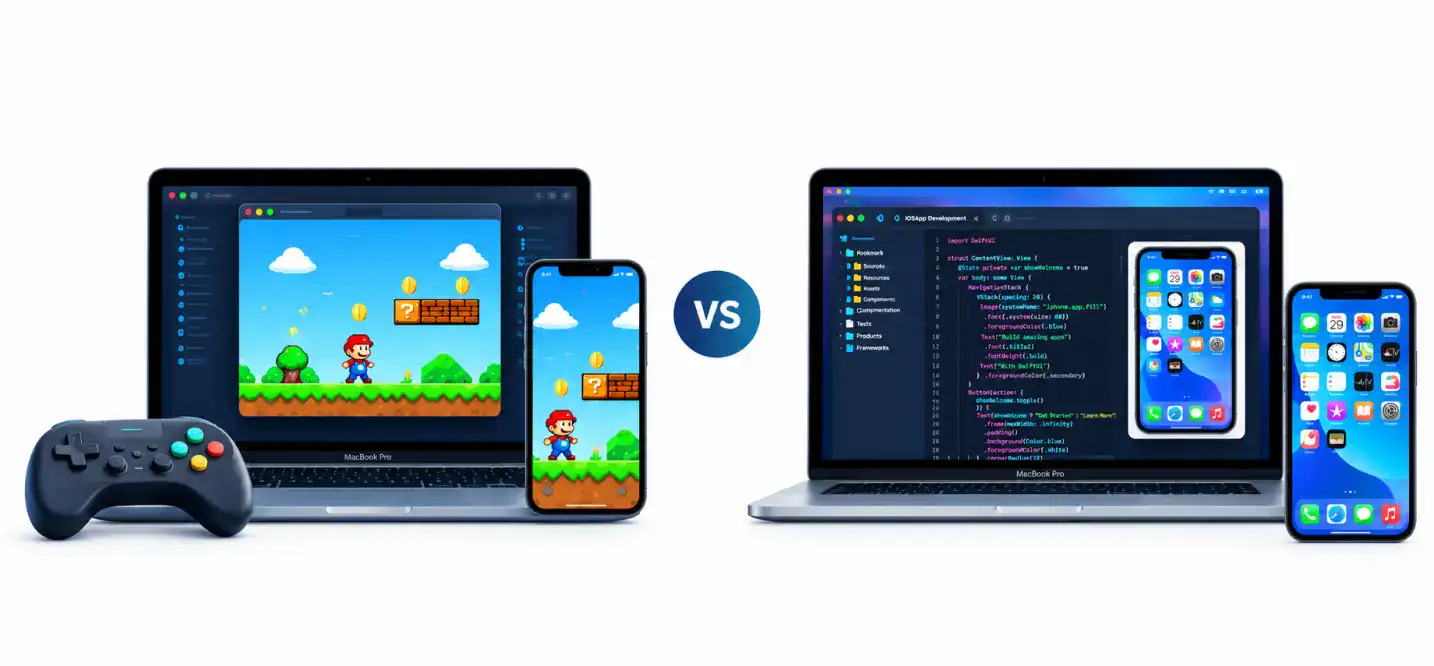
The difference is more than terminology. It affects what you can run, which operating system you need, and how much confidence you can place in your test results.
| Feature | iOS Emulator | iOS Simulator | Cloud-based device testing |
|---|---|---|---|
| Primary purpose | Recreate a target system or hardware environment | Model device and OS behavior | Test an app through remote device environments |
| Typical use | Retro gaming or specialized compatibility testing | App development and debugging | Device compatibility and release testing |
| Runs on | Depends on the emulator | Xcode Simulator runs on macOS | Usually accessed through a browser or testing API |
| Requires a physical iPhone | Not always | No for simulated tests | Not for the user, though the provider may use real devices |
| Hardware fidelity | Depends on the implementation | Cannot reproduce every hardware feature | Real-device sessions can reproduce more physical-device behavior |
Apple’s documentation for running apps on simulated or physical devices explains that simulated devices are useful for debugging across device configurations, but they don’t replicate all the performance characteristics and hardware features of physical devices.
That makes simulators useful for early development and repeatable tests. Physical-device testing remains important when an app depends on hardware-specific behavior.
Best iOS Emulators for iPhone and iPad Gaming
If your goal is to play retro games on an iPhone or iPad, you need an iOS emulator for gaming, not a development simulator. The best choice depends on the console you want to emulate, controller support, installation options, and your device’s performance.
1. Delta: Best for Beginner-Friendly Retro Gaming
Delta is a practical starting point for people who want to play supported Nintendo console games on an iPhone or iPad. Its interface is designed for gaming rather than software development, with features such as save states and controller support.
Best for: Casual players who want a straightforward way to revisit compatible retro games.
Key Considerations:
- Supports selected Nintendo gaming systems.
- Provides save states and customizable controller skins.
- Can work with compatible external controllers.
- Availability and installation options vary by region.
Check the official Delta user guide for current installation instructions and supported features. Use game files you have the legal right to use, and check applicable rules before downloading or sharing ROMs.
2. RetroArch: Best for Multiple Gaming Systems
RetroArch takes a different approach. It provides a common interface for multiple emulation engines, known as cores, so users can manage games from different systems within one application.
Best for: Experienced users who want a configurable, multi-system gaming setup.
Key Considerations:
- Supports multiple emulation cores.
- Offers configuration options for controls, video, and audio.
- Can be more complicated to configure than a single-purpose iOS emulator.
- Core availability and performance depend on the platform.
RetroArch makes sense if you want one interface for several supported systems. If you only want to play games from one console, a dedicated emulator may be easier to manage.
3. PPSSPP: Best for PlayStation Portable Games
PPSSPP is designed to emulate the PlayStation Portable (PSP), making it the relevant choice for people who want to play compatible PSP games on supported Apple devices or computers.
Best for: PSP gaming, with options to adjust controls and graphics settings.
Key Considerations:
- Focuses on PSP games rather than general iOS applications.
- Supports graphics and performance settings that can vary by device.
- Some features available on other platforms may be limited on iOS.
- Performance depends on the game, device, and emulator configuration.
The official PPSSPP iOS documentation explains installation options and platform-specific limitations.
Other iPhone Emulators For Gaming Worth Considering
Other projects may support additional console systems, but verify their current availability, compatibility, and installation requirements before choosing one. An emulator’s name alone doesn’t guarantee it supports your preferred games or works on your iOS version.
For gaming, compare the supported console, controller compatibility, save-state support, performance requirements, and official installation method. Avoid unofficial downloads that ask you to install unfamiliar configuration profiles or grant unnecessary permissions.
Best iOS Emulators and Simulators for App Development
Developers looking to run or test an iOS app need a different set of tools. The key question is whether you need to debug your own source code, preview a compatible build, test on actual iPhones, or automate a release-testing workflow.
4. Xcode Simulator: Best for Native iOS Development
Xcode Simulator is Apple’s built-in environment for running and testing apps on simulated Apple devices. It works with Xcode on a Mac and lets developers select supported device configurations and operating system runtimes.
Best for: iOS developers who need to build, debug, and test native apps.
What it offers:
- Simulated iPhone and iPad configurations.
- Integration with Xcode’s development and debugging workflow.
- Support for testing layouts, navigation, and application behavior.
- Tools for investigating issues before running tests on physical devices.
Simulator is particularly useful during development because you can test different screen sizes and OS configurations without owning every supported device. However, it isn’t a general-purpose Windows iOS emulator, and it cannot reproduce every hardware-dependent behavior.
You can get Xcode and its development tools from Apple’s official Xcode page. For teams choosing a development stack, Cubix’s guide to mobile app development technologies provides additional context on the technologies used to build mobile applications.
5. Appetize.io: Best for Browser-Based App Previews
Appetize.io lets users interact with compatible mobile app builds through a web browser. This can be useful when a developer needs to demonstrate an app, share a preview with stakeholders, or inspect a build without asking every reviewer to configure a local development environment.
Best for: Browser-based previews, demonstrations, and supported app-testing workflows.
What to consider:
- The app build must be compatible with the service’s supported formats and environment.
- Available capabilities depend on the product and plan.
- Browser access simplifies sharing, but it doesn’t make every hardware-specific test possible.
- Uploading proprietary builds requires a review of the provider’s security and data-handling practices.
Appetize.io is useful when sharing and access are the main challenges. It shouldn’t be treated as a complete replacement for Xcode or physical-device testing.
6. BrowserStack App Live: Best for Manual Testing on Remote Devices
BrowserStack App Live provides interactive access to real iOS and Android devices through the cloud. Instead of simulating every device locally, developers can install a compatible app build on a hosted device and interact with it remotely.
Best for: QA teams that need to check app behavior across multiple devices without maintaining their own device lab.
Useful capabilities include:
- Testing on supported physical devices and OS versions.
- Interacting with the app through taps, swipes, and other gestures.
- Checking device-dependent behavior and supported location or network scenarios.
- Testing builds that connect to internal development or staging environments, where configured and supported.
The BrowserStack App Live documentation outlines its real-device testing workflow and available features.
This approach is particularly useful when an issue appears only on certain iPhone models or operating system versions. A real-device session can reveal behavior that a simulator might not reproduce.
7. Sauce Labs: Best for Manual and Automated Mobile QA
Sauce Labs supports mobile application testing through simulated environments and real devices. It can be useful for teams that need to run manual checks, execute automated tests, and incorporate mobile QA into their existing development pipeline.
Best for: Development teams that need repeatable testing across multiple mobile configurations.
Depending on the selected service, teams can:
- Upload compatible app builds for testing.
- Run manual sessions on supported virtual or physical devices.
- Integrate automation frameworks such as Appium and XCUITest.
- Review test outcomes and diagnostic information.
- Expand test coverage without purchasing every device in-house.
See the Sauce Labs mobile testing documentation for supported testing workflows and framework integrations.
Before choosing a cloud testing platform, compare device coverage, concurrency limits, automation support, session retention, and pricing. A tool that fits a small team’s occasional manual tests may not be the best fit for a large CI pipeline.
8. Corellium: Best for Specialized iOS Virtualization and Security Research
Corellium provides virtualized mobile environments for development, security research, and application testing. It serves a more specialized audience than everyday iOS gaming emulators or standard UI simulators.
Best for: Security researchers and technical teams that need deeper access to virtualized iOS environments.
Potential use cases include:
- Mobile application security testing.
- Instrumentation and investigation of app behavior.
- Research that requires controlled virtualized environments.
- Specialized testing workflows that benefit from deeper system access.
Corellium is not intended as a simple way to run any App Store app on a Windows laptop. Its capabilities, supported device versions, and hardware limitations should be checked against the requirements of the project. The Corellium iOS support documentation describes its virtual iOS environments and relevant restrictions.
iOS Emulator Alternatives for Windows and Linux
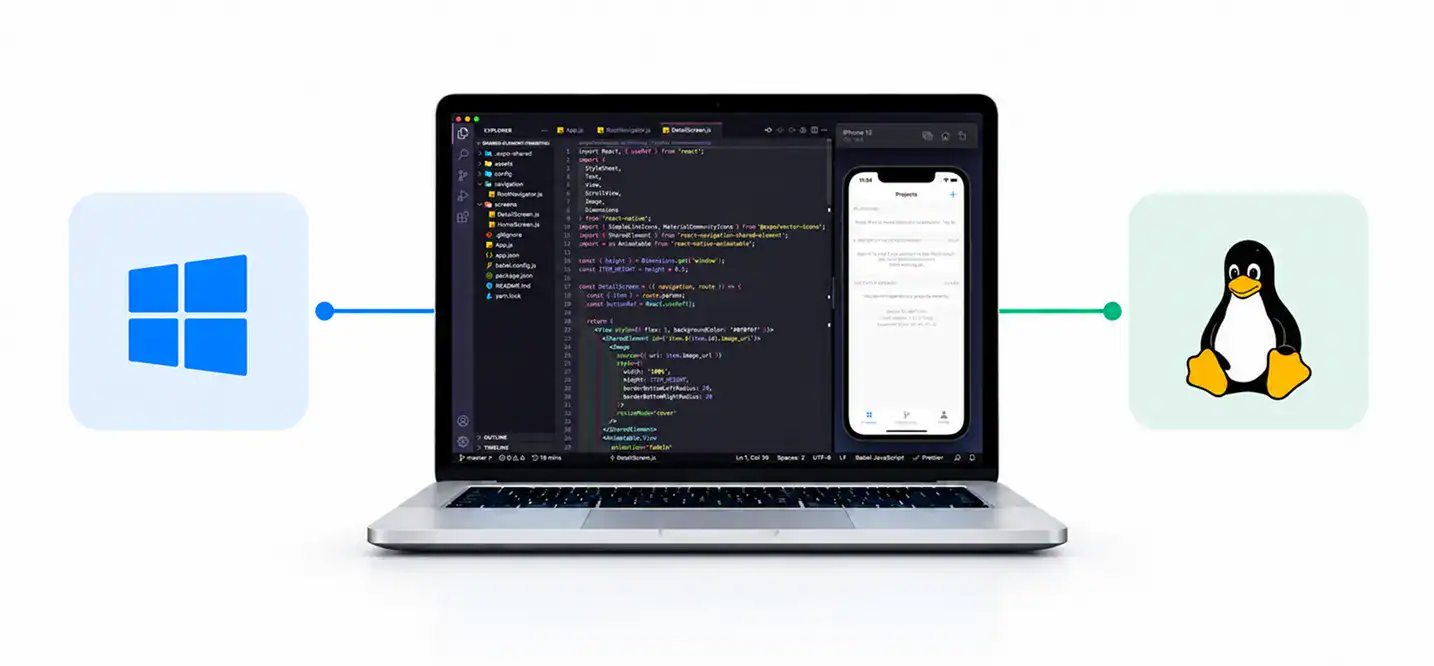
A common reason people search for an iOS emulator is that they want to run an iPhone app on a Windows PC or Linux machine. The limitation is that Apple doesn’t provide a native Xcode Simulator for either operating system.
That doesn’t mean you’re out of options. The right alternative depends on what you need to accomplish.
| Your situation | Practical alternative | What to know |
|---|---|---|
| You want to preview a compatible iOS app build | Browser-based app preview | Supported build formats and features vary by provider |
| You need to test on actual iPhones | Cloud-based real-device testing | Requires an account and may involve paid usage |
| You need Xcode and native debugging | A Mac or remote Mac environment | The iOS build and debugging workflow still depends on Apple’s tools |
| You want to test a web app on iPhone Safari | Remote device or browser testing | Web testing is different from running a native iOS app |
| You want to play retro games on an iPhone | A compatible iOS gaming emulator | The emulator runs supported console games, not arbitrary iPhone apps |
Be cautious with desktop applications that imitate the iOS interface. An iOS-style launcher or visual skin does not necessarily run native iOS applications, access Apple’s services, or reproduce iPhone hardware behavior.
If you’re comparing native and cross-platform development options, this cross-platform app development guide can help explain how the app’s architecture affects platform support and testing.
How to Choose the Right iOS Emulator for Your Needs
Start with the job you need to complete, then compare the tools against that requirement. A long feature list is less useful than knowing whether a tool can run your app, reproduce the behavior you’re testing, and fit your development environment.
| If You Need To… | Start With… |
|---|---|
| Play supported retro games on an iPhone | Delta or a compatible gaming iOS emulator |
| Emulate PSP games | PPSSPP |
| Build and debug a native iOS app | Xcode Simulator |
| Share an app preview in a browser | Appetize.io |
| Test on several physical iPhone models | BrowserStack App Live or another real-device service |
| Automate mobile regression testing | Xcode testing tools, Appium, or a supported cloud platform |
| Perform specialized iOS security research | A suitable virtualized research environment |
Before committing to a tool, check these factors:
- Operating system: Does it run on your computer, or do you need a Mac or remote service?
- App compatibility: Can it run your specific build or only supported games and formats?
- Device coverage: Does it support the iPhone models and OS versions you need?
- Testing features: Can it simulate location, gestures, network conditions, and other required scenarios?
- Automation: Can it run repeatable tests and integrate with your CI pipeline?
- Cost and security: Are the usage limits, data-handling terms, and pricing suitable for your team?
The best iOS emulator is the one that supports your actual workload, not necessarily the one with the most features.
What Can You Test With an iOS Simulator or Cloud Testing Tool?
For app development, the value of an iOS emulator or simulator depends on the behavior it can reproduce. A basic UI preview is enough for some tasks, but production apps often need a broader test strategy.
1. Device Compatibility and Screen Sizes
Simulated devices can help you check layouts, navigation, orientation changes, text scaling, and behavior across supported screen configurations. This is useful for catching issues such as clipped controls, overlapping elements, and inconsistent spacing before testing on physical hardware.
2. Gestures, Location, and Network Conditions
Depending on the tool, you may be able to test taps, swipes, location changes, and network conditions. These checks are valuable for apps that use maps, delivery tracking, geofencing, or network-dependent workflows.
However, simulated inputs don’t always reproduce real GPS behavior, carrier connectivity, or hardware timing. Verify critical workflows on a physical device or a suitable real-device testing service.
3. Push Notifications and Accessibility
Push notification testing can involve app permissions, notification delivery, app state, and the server-side configuration that sends messages. A simulator may support some notification workflows, but actual delivery and device-specific behavior require appropriate validation.
Accessibility checks should cover VoiceOver behavior, dynamic text, contrast, focus order, and accessible labels. Automated checks can identify some issues, but manual testing remains important for understanding how people navigate the app.
4. Automated Testing and CI Integration
Teams can use XCUITest for UI automation in Apple’s testing ecosystem and Appium for cross-platform mobile automation workflows. WebDriverAgent may also be part of an iOS automation setup, depending on the framework and configuration.
A reliable mobile test pipeline can include:
- Unit and integration tests for application logic.
- UI tests for important user journeys.
- Device compatibility testing across selected models and OS versions.
- Parallel test execution where the chosen platform supports it.
- Continuous integration testing on relevant code changes.
- Test session logs, screenshots, and diagnostics for investigating failures.
Apple’s XCTest documentation explains how the framework supports unit, performance, and UI tests. The right balance is to automate repeatable checks while retaining manual testing for complex interactions and real-world behavior.
Testing should be part of the mobile app development process, not a last-minute step before release.
Are iOS Emulators Accurate Enough for Testing?
Yes, for many development tasks, but not for every test. Simulators are useful for checking app logic, layouts, navigation, and repeatable UI workflows. Cloud platforms can extend coverage across more devices without requiring a company to maintain its own lab.
The limitations appear when an app depends on physical hardware or real-world conditions.
A simulator may not accurately reproduce:
- Actual device performance, thermal behavior, or battery consumption.
- Every camera, Bluetooth, NFC, or sensor interaction.
- Biometric authentication and hardware-backed security.
- Carrier-specific network behavior.
- All push notification and background execution scenarios.
A practical test strategy combines several layers:
- Use simulators early to debug features and catch layout issues.
- Automate repeatable tests for critical user journeys and regression checks.
- Use cloud-based real devices when you need wider device coverage.
- Validate on physical iPhones before release, especially for hardware-dependent features and performance-sensitive workflows.
The goal isn’t to test everything on every device. It’s to select a representative set of devices and scenarios based on your users, app functionality, and risk.
Are iOS Emulators Safe and Legal to Use?
Legitimate iOS emulators, simulators, and testing platforms can be useful, but safety depends on where the software comes from and how you use it.
Follow these precautions:
- Download tools from official websites or trusted app distribution channels.
- Review configuration profiles, permissions, and installation instructions before proceeding.
- Avoid unofficial installers that promise unrestricted access to native iOS apps on Windows.
- Use game files only when you have the appropriate rights.
- Check the provider’s security controls before uploading proprietary app builds, credentials, or test data to a cloud platform.
- Use authorized test accounts and environments when testing apps that handle sensitive information.
Legal requirements can vary by jurisdiction, software license, and the content being emulated. Don’t assume every emulator or every use of an emulator has the same legal status.
Need help testing your iOS app? Let's talk.
Contact UsFinal Thoughts
The best iOS emulator depends on what you need to do. iOS Gaming emulators like Delta and PPSSPP are built for retro games, while Xcode Simulator, Appetize.io, and cloud-based testing platforms help developers preview and test iOS apps. For reliable results, combine simulated testing with real-device checks, especially for hardware-dependent features and performance.
If you’re building an iOS app, choosing the right testing setup early can help catch compatibility issues before launch. Cubix can help you plan, build, and test applications around your product requirements. Explore our iOS app development services to see how the right development approach can support your next project.
Frequently Asked Questions
1. What is the best iOS emulator for Windows?
There is no general-purpose Windows iOS emulator that reproduces every iPhone feature and runs arbitrary native iOS apps. For app testing, consider browser-based previews, cloud testing on real iPhones, or remote access to a Mac.
2. Can I run iOS apps on a PC without a Mac?
You can test some compatible app builds through browser-based services or cloud-hosted devices without owning a Mac. However, native iOS development and the standard Xcode build workflow require access to macOS and Apple’s development tools.
3. Is Xcode Simulator free to use?
Xcode is available from Apple without a paid Apple Developer Program membership for basic development and testing. A paid membership is generally needed for certain distribution and program benefits, not simply to use Simulator for local development.
4. What is the difference between an iOS emulator and a simulator?
An iOS emulator attempts to recreate aspects of a target system, while a simulator models its software and behavior. Apple’s Xcode Simulator is designed for app development and does not reproduce every physical-device feature or performance characteristic.
5. Are iOS emulators accurate enough for testing?
They are useful for UI checks, debugging, and repeatable functional tests. For hardware-dependent features, performance, and final release validation, combine simulated tests with physical-device or real-device cloud testing.
6. Do I still need a real iPhone for testing?
Usually, yes, at least for final validation. Physical devices help verify performance, sensors, biometrics, camera behavior, connectivity, and other features that simulated environments may not reproduce accurately.
7. What is Appetize.io used for?
Appetize.io provides browser-based access to compatible mobile app builds. It can help teams share previews and inspect app behavior without requiring every reviewer to configure a local development environment.
8. Are cloud-based iOS testing tools worth paying for?
They can be worthwhile when a team needs access to multiple iPhone models, OS versions, or automated testing environments. Compare device coverage, concurrency, test automation, security, and usage costs against maintaining a physical device lab.
9. Can I test iOS apps on Linux?
You can use compatible cloud testing services or remote access to a Mac for parts of the workflow. Apple’s Xcode Simulator does not run natively on Linux, so choose an approach based on whether you need previews, real-device tests, or native debugging.
10. Which iOS emulator is best for developers?
Xcode Simulator is the standard starting point for native iOS development on a Mac. Developers who need wider device coverage can add cloud-based real-device testing, while specialized virtualization tools serve more advanced security and research requirements.