Key Takeaways
- Optimize startup time by loading only essential components first and delaying non-critical background tasks.
- Improve UI responsiveness with efficient layouts, RecyclerView optimization, and smooth rendering techniques.
- Reduce memory usage, battery consumption, and network overhead through caching, lazy loading, and proper resource management.
- Use Android Studio profiling tools to identify CPU, memory, rendering, and network bottlenecks before and after launch.
- Make app optimization part of your Android development lifecycle to increase user retention, improve Play Store ratings, and reduce long-term maintenance costs.
Every day, thousands of new apps are published on the Google Play Store. That means users have plenty of options and very little patience for apps that perform poorly. They expect apps to launch quickly, respond instantly, and deliver a smooth experience regardless of the device they’re using. If an app takes too long to load, stutters while scrolling, or drains the battery, users are likely to uninstall it and switch to a competitor. In today’s crowded app market, performance isn’t just a technical metric. It directly influences user satisfaction, app ratings, retention, and revenue.
According to Google, users expect mobile apps to respond to interactions within milliseconds, while maintaining a consistent 60 frames per second creates a smooth and responsive interface. Even minor performance issues can reduce engagement and increase user churn.
That’s why Android app optimization should be part of the entire Android development lifecycle rather than something addressed just before launch. Building performance into every stage of development helps reduce technical debt, improve scalability, and deliver a better user experience from the very beginning.
Whether you’re developing a new Android app or improving an existing one, following proven optimization strategies can help your application run efficiently across different devices, Android versions, and network conditions. In this guide, we’ll explore the best Android app optimization practices to help you build faster, more responsive, and more reliable applications.
Why Is Android App Optimization Important?
Users judge your app within seconds. If it takes too long to load or feels sluggish during navigation, they often leave before exploring its features. Performance has become one of the biggest factors influencing whether users keep an app installed or abandon it after the first few sessions.
Optimizing your Android app improves the user experience while also supporting your business goals. Faster applications encourage users to spend more time in the app, complete more actions, and leave better reviews.
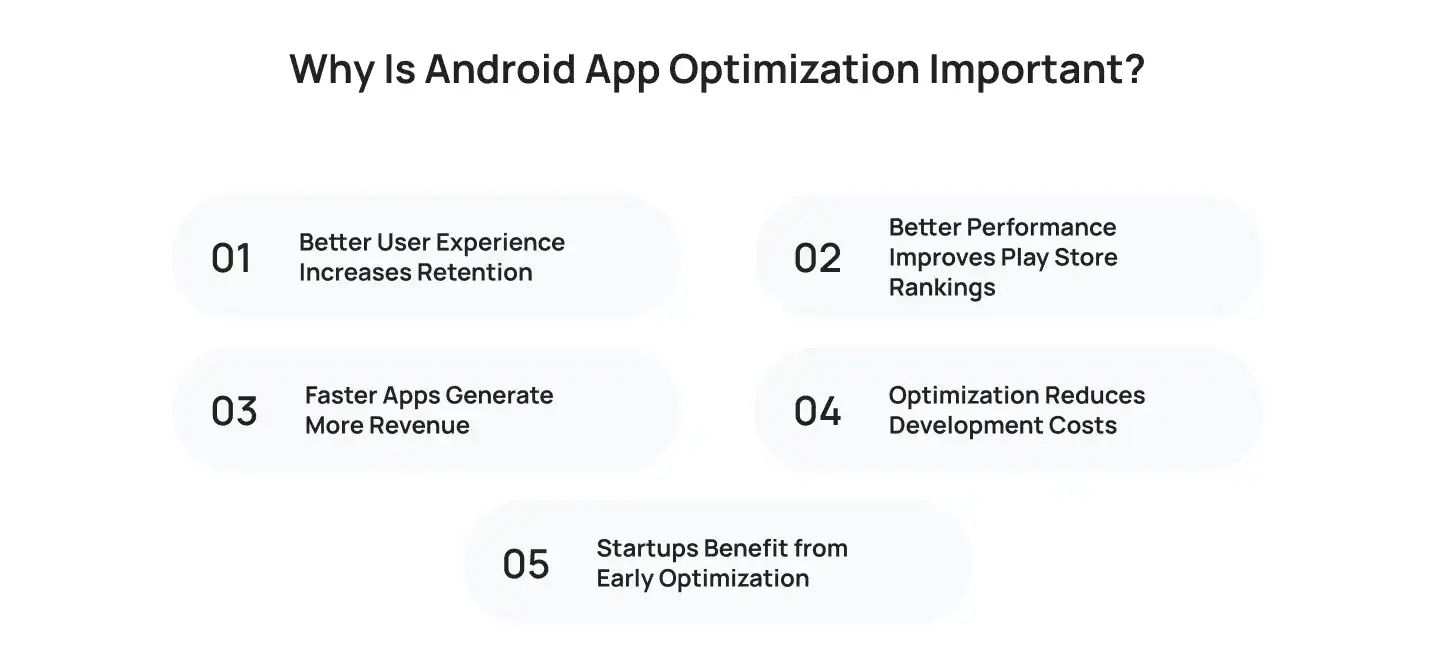
Better User Experience Increases Retention
People expect apps to respond immediately when they tap a button, scroll through content, or switch between screens. Every delay creates friction.
A well-optimized Android application offers:
- Faster loading screens
- Smooth scrolling
- Responsive navigation
- Stable performance across different devices
- Fewer crashes and freezes
For example, an eCommerce application that loads product pages instantly allows customers to browse more products and complete purchases without frustration. A smoother shopping experience often leads to higher conversion rates.
Better Performance Improves Play Store Rankings
Google Play values apps that deliver a high-quality user experience. Crash rates, responsiveness, stability, and overall performance influence user ratings and reviews, which affect app visibility.
Apps that perform well often benefit from:
- Higher average ratings
- More positive reviews
- Better search visibility
- Increased organic downloads
- Greater user trust
Performance improvements don’t just satisfy existing users. They also help new users discover your application more easily.
Faster Apps Generate More Revenue
Every second matters when users are shopping, booking services, or subscribing to premium features.
Imagine two food delivery apps with similar features. One loads restaurant listings in two seconds while the other takes six. Most users will continue using the faster app because it saves time and creates a smoother experience.
Better performance leads to:
- Higher conversion rates
- Longer session durations
- Increased in-app purchases
- Better subscription retention
- Higher advertising revenue
Optimizing performance also strengthens future Android App Monetization strategies because users are more likely to engage with apps they enjoy using.
Optimization Reduces Development Costs
Fixing performance problems after launch takes more time and money than preventing them during development.
When developers include optimization throughout the Android development lifecycle, they identify bottlenecks early, reduce technical debt, simplify future updates, and lower maintenance costs.
Performance-first development also makes it easier to estimate the pricing of Android apps because fewer resources are spent resolving avoidable issues after release.
Startups Benefit from Early Optimization
For startups, first impressions matter. Users often compare several apps offering similar services, and performance becomes a deciding factor.
Building optimization into your product from the beginning offers several Android startup advantages, including:
- Better user retention
- Faster product iterations
- Lower support costs
- Improved Play Store ratings
- Greater customer satisfaction
Instead of treating optimization as a final checklist, successful startups make it part of every development milestone.
What Makes Android Apps Slow?
The most common reasons Android apps become slow include:
- Poor application architecture that creates unnecessary processing and inefficient data flow.
- Heavy or deeply nested layouts that increase rendering time and slow screen transitions.
- Large images and media files that consume more memory and increase loading times.
- Excessive API requests that create network delays and reduce responsiveness.
- Continuously running background services that use CPU resources and drain the battery.
- Memory leaks that keep unused objects in memory, causing slowdowns and crashes.
- Unoptimized code and third-party libraries that add unnecessary processing overhead.
- Lack of performance profiling during development Android app, allowing bottlenecks to go unnoticed until after launch.
How Can You Improve Android App Startup Time?
The first few seconds after someone opens your app matter more than you think. Users want to get things done right away, whether they’re ordering food, checking messages, or making a payment. If your app takes too long to launch, many users won’t wait. They’ll simply close it and move on.
That’s why startup time optimization for Android apps should be a priority from the beginning of development. A faster launch creates a better first impression and encourages users to keep using your app.
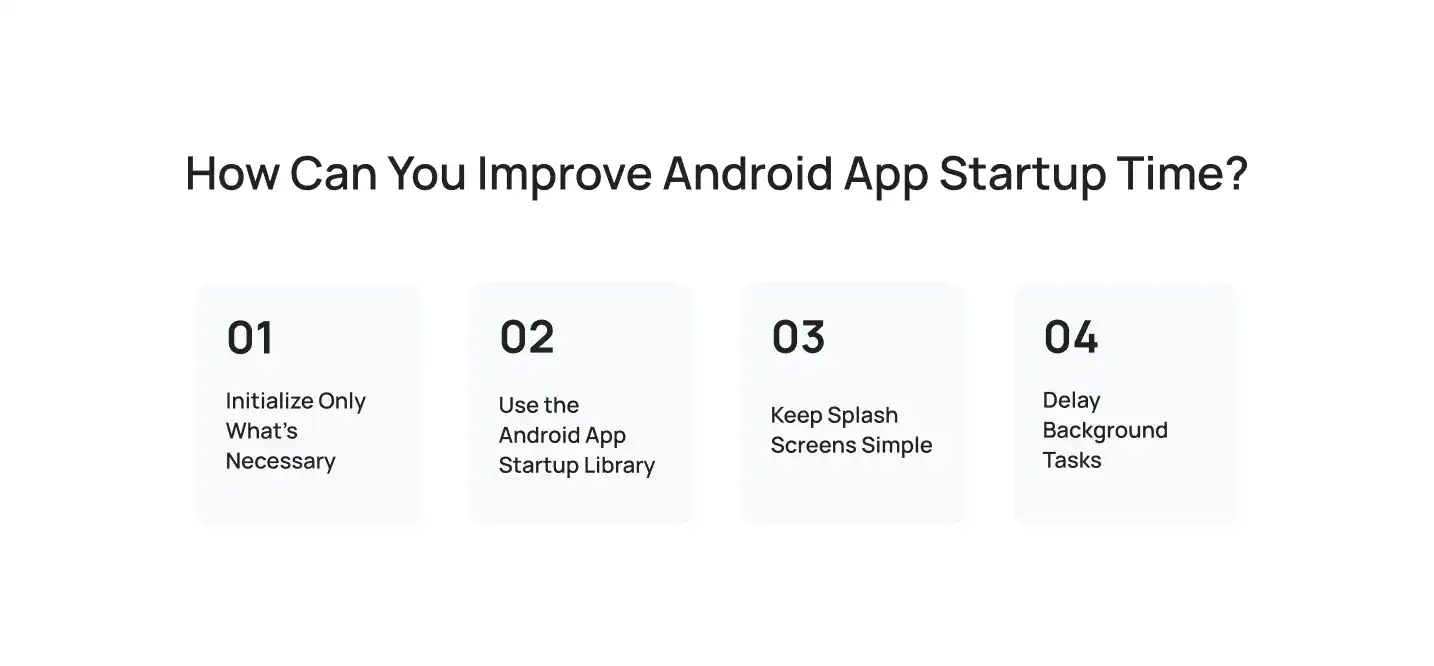
Initialize Only What’s Necessary
Many Android apps try to load everything during startup, including analytics, notifications, advertisements, and background services. While these features are important, they don’t all need to load before users reach the home screen.
Instead, initialize only the components required for the first screen. Load everything else after users begin interacting with the app. This simple change reduces launch time without affecting functionality.
Use the Android App Startup Library
Google’s Android App Startup Library helps developers manage component initialization more efficiently. Instead of every library initializing independently, the framework coordinates startup tasks to reduce unnecessary work during launch.
This results in cleaner startup logic and a faster app experience.
Keep Splash Screens Simple
A splash screen should create a smooth transition into your app, not hide slow loading times.
Avoid performing heavy operations while the splash screen is visible. Instead, display your main interface as quickly as possible and continue loading secondary content in the background.
Delay Background Tasks
Users don’t need recommendations, analytics, or promotional banners the moment they open your app.
Delay tasks like:
- Fetching personalized recommendations
- Synchronizing user data
- Loading advertisements
- Updating analytics
- Downloading optional content
By postponing these operations, your app becomes interactive much faster.
For example, a food delivery app reduced its startup time by loading restaurant recommendations after the home screen appeared. Users started browsing immediately while additional content loaded in the background.
According to Android Developers, reducing unnecessary startup work is one of the most effective ways to improve launch performance and overall user satisfaction.
Want to discuss your project? Our experts are just a click away.
Contact UsWhat Are the Best Android UI Performance Optimization Techniques?
A fast app isn’t just about loading quickly. Users also expect smooth scrolling, responsive buttons, and seamless navigation. Small delays can make an app feel outdated, even if it offers great features.
Effective Android UI performance optimization focuses on making every interaction feel natural. Google recommends maintaining a rendering speed of around 60 frames per second (FPS) to deliver smooth animations and responsive interfaces.
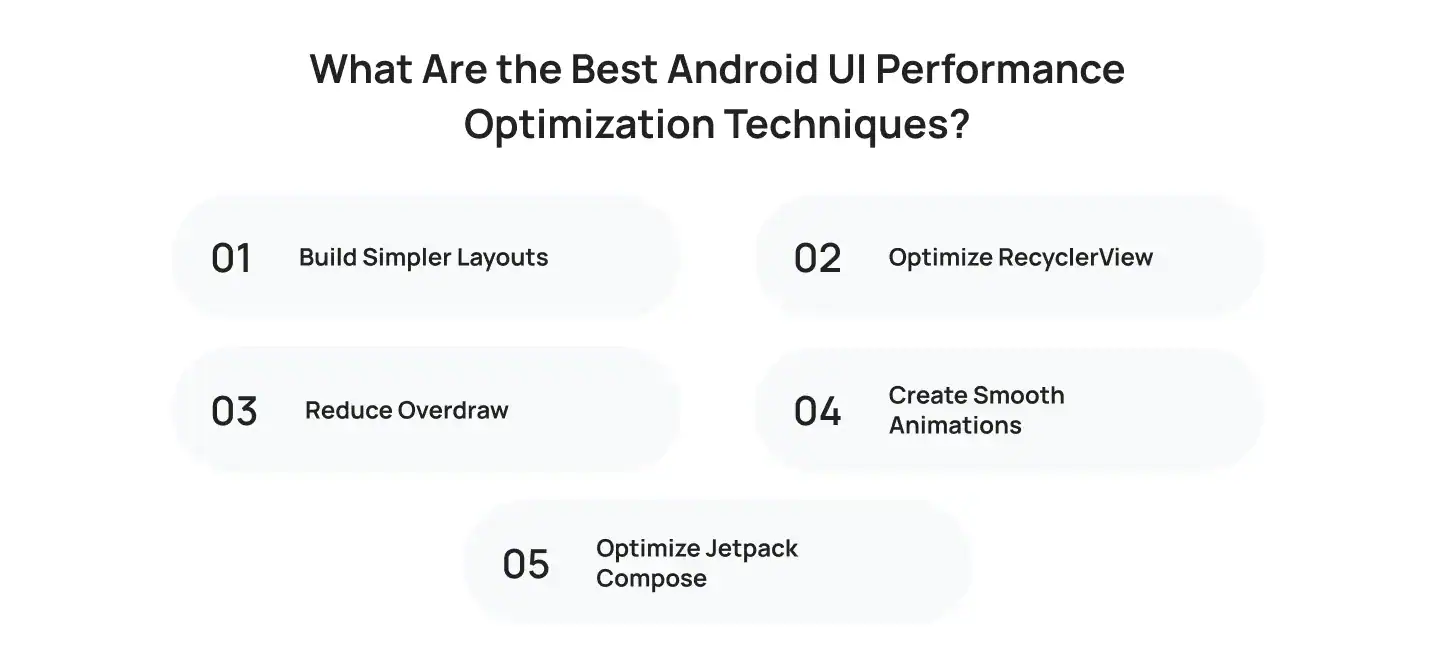
Build Simpler Layouts
Complicated layouts require more time to render. Deeply nested view hierarchies increase CPU and GPU workload, slowing down screen transitions and animations.
Using ConstraintLayout helps simplify your interface while reducing rendering overhead. If you’re building new applications, Jetpack Compose also provides modern tools for creating efficient user interfaces.
Optimize RecyclerView
RecyclerView powers many Android apps, from social media feeds to shopping catalogs. When it’s implemented correctly, it handles large datasets smoothly.
Improve RecyclerView performance by:
- Reusing ViewHolders efficiently
- Updating only modified items
- Loading images asynchronously
- Using stable IDs when appropriate
For example, a news application displaying hundreds of articles maintains smooth scrolling by recycling views instead of creating new ones for every item.
Reduce Overdraw
Overdraw happens when Android draws the same pixel multiple times before displaying the final screen. This unnecessary rendering wastes GPU resources and affects performance.
Reduce overdraw by:
- Removing unused background layers
- Avoiding overlapping views
- Simplifying complex layouts
- Reviewing overdraw using Android Studio tools
These adjustments improve rendering performance, especially for graphics-intensive applications.
Optimize Jetpack Compose
Jetpack Compose makes UI development faster, but inefficient state management can trigger unnecessary recompositions.
Developers should:
- Keep composables focused on a single responsibility
- Use remember to preserve state
- Avoid updating state unnecessarily
- Split large composables into smaller reusable components
These practices improve rendering efficiency and make interfaces more responsive.
Create Smooth Animations
Animations should improve usability instead of slowing the application.
Keep animations lightweight by:
- Using hardware acceleration
- Avoiding unnecessary animation sequences
- Keeping durations consistent
- Running expensive operations outside the main thread
A smooth interface makes users feel like the app responds instantly, even when background work continues.
How Can You Improve Android App Speed Without Removing Features?
Adding new functionality shouldn’t make your app slower. Users expect new features without sacrificing speed. That’s where speed optimization becomes important.
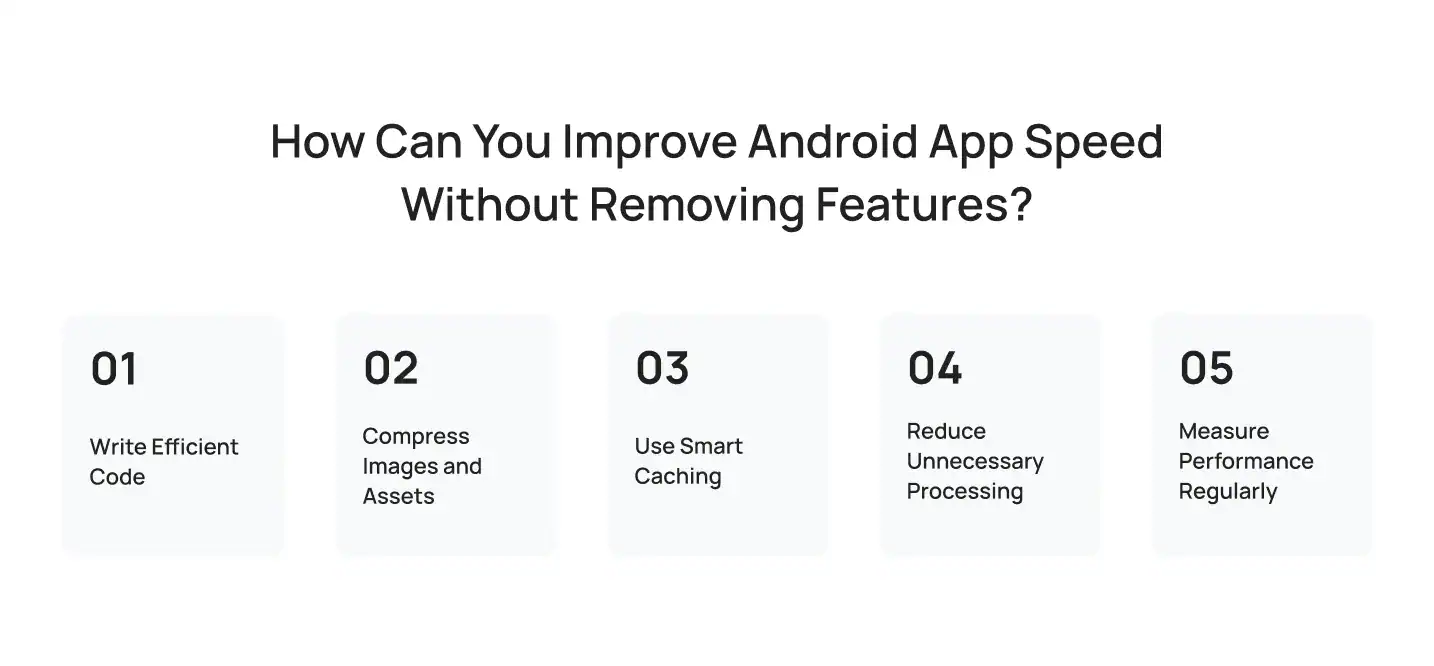
The goal isn’t to remove features. It’s to make every feature work more efficiently.
Write Efficient Code
Poorly optimized code performs unnecessary work, increasing CPU usage and slowing the application.
Review your code regularly to:
- Remove duplicate operations
- Simplify complex algorithms
- Avoid unnecessary object creation
- Move heavy tasks to background threads
Small improvements throughout your codebase often produce noticeable performance gains.
Compress Images and Assets
Large media files increase loading times and consume more storage.
Improve loading speed by:
- Using WebP images
- Compressing graphics
- Serving different image sizes for different devices
- Streaming media instead of downloading everything upfront
For example, a streaming platform reduced buffering delays by compressing thumbnails and loading video content dynamically based on network speed.
Use Smart Caching
Repeatedly downloading the same information wastes bandwidth and increases loading times.
Implement caching for:
- Images
- API responses
- User preferences
- Frequently accessed content
Local caching reduces server requests while giving users a faster experience.
Reduce Unnecessary Processing
Not every background task needs to run continuously.
Review your application and eliminate:
- Constant database polling
- Unnecessary background synchronization
- Frequent sensor updates
- Idle services consuming CPU resources
Reducing unnecessary work improves responsiveness while lowering battery consumption.
Measure Performance Regularly
Optimization isn’t something you do once before publishing. Every new release introduces opportunities for performance regressions. Monitor each update using profiling tools to identify bottlenecks before users notice them. Studies consistently show that faster applications generate longer session durations, higher engagement, and better conversion rates.
How Do You Optimize Memory Usage in Android Apps?
As Android applications grow, they consume more memory. Without proper memory optimization, apps become slower, less responsive, and more likely to crash. Managing memory efficiently keeps your application stable across both flagship smartphones and entry-level Android devices.
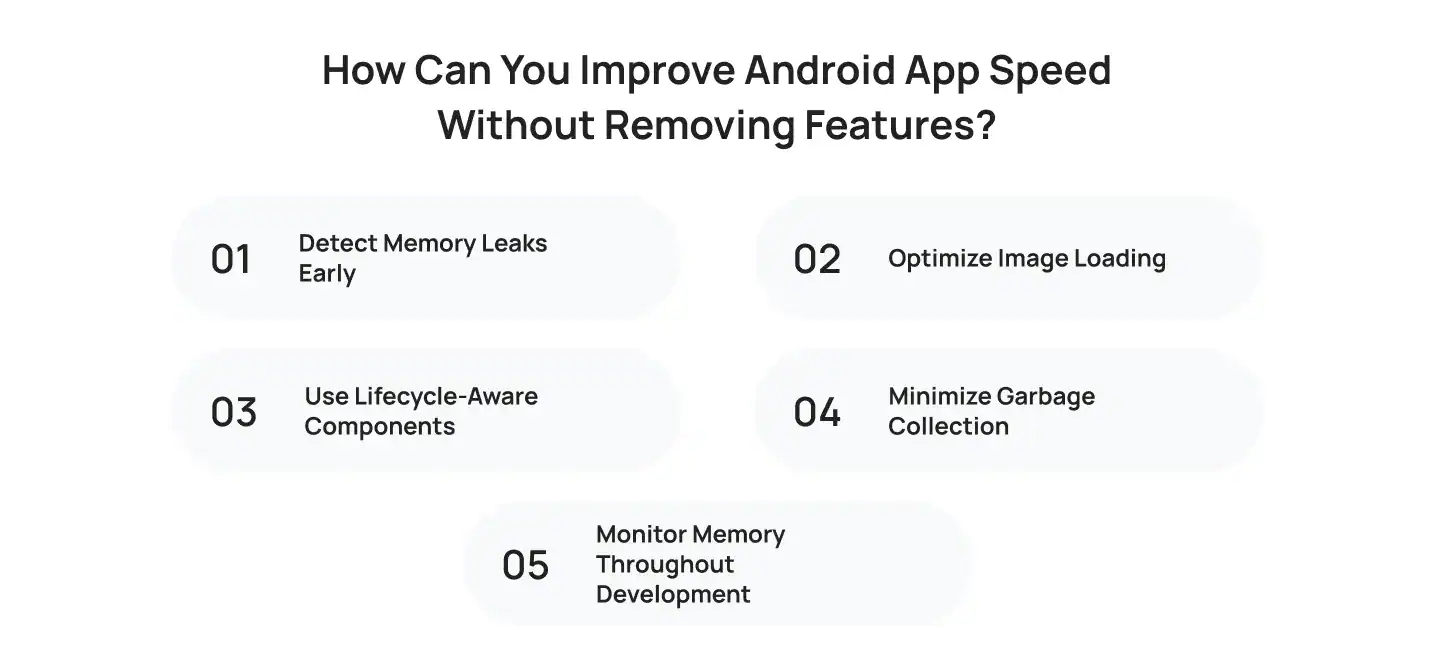
Detect Memory Leaks Early
Memory leaks happen when objects remain in memory after users no longer need them. Over time, these unused objects consume system resources and reduce application performance. Use tools like LeakCanary and Android Studio’s Memory Profiler to identify memory leaks before they affect production users.
Optimize Image Loading
Images often consume more memory than any other asset in an application.
Reduce memory usage by:
- Resizing images before loading them
- Using Glide or Coil for efficient image loading
- Recycling bitmap resources
- Loading only the required image resolution
These improvements are especially valuable for eCommerce, social media, and photo-sharing applications.
Use Lifecycle-Aware Components
Activities and fragments shouldn’t continue consuming memory after users leave them. Lifecycle-aware components automatically release resources when screens are destroyed, reducing memory leaks and improving stability.
Minimize Garbage Collection
Android automatically removes unused objects, but creating too many temporary objects forces the system to perform garbage collection more frequently.
Reduce allocations by:
- Reusing existing objects
- Avoiding unnecessary object creation inside loops
- Keeping animations lightweight
Less garbage collection means smoother scrolling and better responsiveness.
Monitor Memory Throughout Development
Don’t wait until the final testing phase to review memory usage.
Use Android Studio’s Memory Profiler throughout development to:
- Track heap usage
- Detect allocation spikes
- Analyze object lifecycles
- Compare memory performance across releases
For example, a messaging app that frequently crashed while sending image attachments became significantly more stable after developers optimized bitmap handling and removed memory leaks. Continuous monitoring helped maintain that stability as new features were added.
How Can Lazy Loading Improve Android App Performance?
Users expect your app to respond instantly. They don’t expect every image, video, or data set to load at once. That’s why lazy loading in Android apps is an effective optimization technique. It loads only the content users need first and fetches additional resources as they interact with the app. This reduces startup time, lowers memory usage, and improves overall responsiveness.
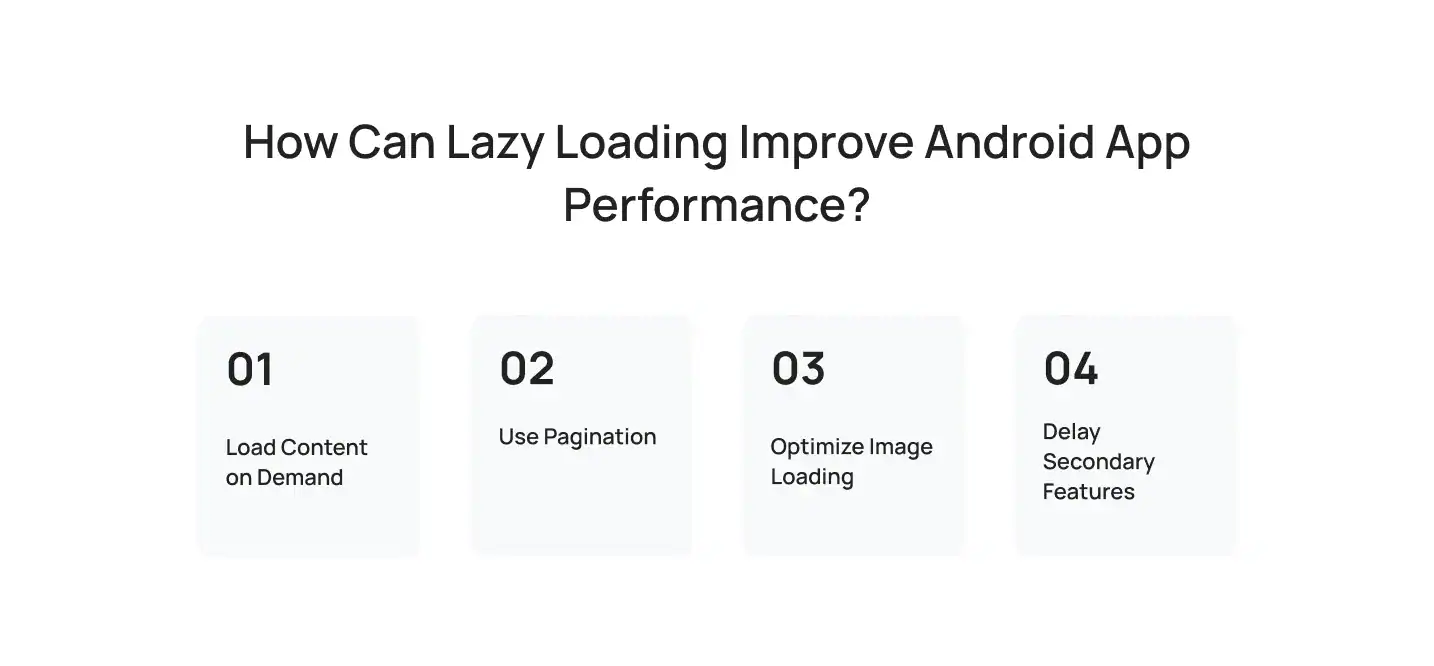
Load Content on Demand
Instead of loading all content during startup, display only what’s visible on the first screen. As users scroll or navigate, load additional content in the background. For example, an eCommerce app initially loads the first few products and fetches more items as users continue browsing.
Use Pagination
Pagination improves performance by loading data in smaller batches instead of downloading large datasets at once. This approach works well for social media feeds, news apps, shopping platforms, and video streaming services. It reduces loading time while keeping scrolling smooth.
Optimize Image Loading
Images consume a significant amount of memory. Using image-loading libraries like Glide or Coil ensures images load only when they appear on the screen. This improves scrolling performance and reduces unnecessary memory usage.
Delay Secondary Features
Features like recommendations, chat history, analytics, and promotional banners don’t need to load immediately. Deferring these tasks allows users to access the main interface faster while additional content loads seamlessly in the background.
How Can You Improve Android App Responsiveness?
Speed matters, but responsiveness matters just as much. Your app should react instantly when users tap a button, swipe between screens, or submit a form. Even a short delay makes the application feel unreliable.
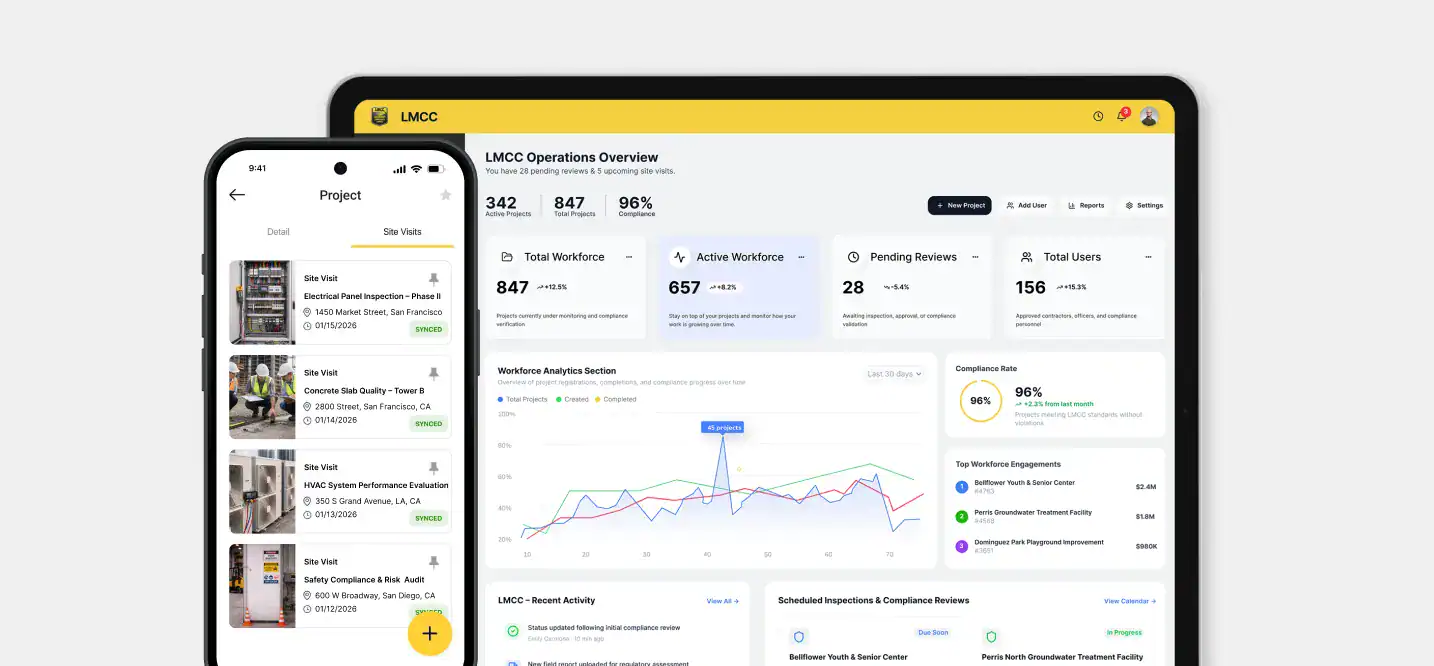
That’s why Android app responsiveness improvement focuses on reducing input delays and keeping the interface smooth during every interaction.
Keep Heavy Tasks Off the Main Thread
Android uses the main thread to render the interface and process user input. If database operations or network requests run on this thread, the UI freezes until those tasks finish.
Move resource-intensive work to background threads using Kotlin Coroutines or WorkManager. This keeps the interface responsive while the app continues processing data.
Optimize Touch Response
Every tap should receive immediate feedback.
You can improve responsiveness by:
- Updating only changed UI elements
- Reducing unnecessary redraws
- Optimizing rendering performance
- Keeping animations lightweight
Small improvements make the application feel much faster without changing any functionality.
Schedule Background Work Efficiently
Background tasks such as syncing data or uploading files shouldn’t interrupt user interactions.
WorkManager helps Android execute these tasks at the right time without affecting the interface.
For example, a banking app processes transactions securely in the background while allowing users to continue browsing their accounts without delays.
Reduce Rendering Delays
Dropped frames create noticeable stuttering during scrolling and animations.
Reduce rendering delays by:
- Simplifying layouts
- Removing unnecessary animations
- Optimizing RecyclerView
- Monitoring frame rendering using Android Studio
Google recommends maintaining consistent frame rendering times to deliver a smooth user experience across Android devices.
How Can Developers Improve Battery Performance?
Battery life affects how users judge your app. Even useful applications lose users if they consume too much power. Efficient battery management helps your app run longer while reducing unnecessary background activity.

Schedule Background Tasks with WorkManager
Running background services continuously wastes battery power. Instead, schedule tasks using WorkManager, which allows Android to execute work only when the device has sufficient resources. Tasks like data synchronization, uploads, and notifications become much more efficient.
Use JobScheduler for System Tasks
For scheduled background work, JobScheduler helps Android combine similar jobs from different applications. This reduces CPU activity and improves battery efficiency without affecting functionality.
Optimize Location Tracking
GPS is one of the biggest sources of battery consumption. Only request location updates when users actually need them. You should also adjust update intervals based on the activity taking place.
For example, a fitness application reduced battery drain by updating GPS data every few seconds during workouts instead of requesting continuous high-accuracy tracking.
Batch Network Requests
Every network request activates the device’s radio, increasing battery consumption. Instead of sending requests individually, group them whenever possible. Network batching reduces power usage while improving overall efficiency.
Avoid Wake Locks
Wake locks prevent Android devices from entering low-power mode. Avoid using them unless necessary. In most situations, WorkManager or JobScheduler provides a more battery-friendly alternative.
What Is the Best Way to Optimize Network Performance?
Fast network performance improves every part of your app. Users spend less time waiting, pages load faster, and interactions feel smoother even on slower mobile connections.

Reduce API Requests
Every API call introduces network latency. Instead of sending multiple requests for related information, combine them whenever possible. Returning only the required data also reduces response sizes.
Implement Pagination
Large datasets increase loading times and memory usage. Pagination retrieves information in smaller batches, allowing users to start interacting with content immediately. An eCommerce application, for example, loads product catalogs page by page instead of downloading thousands of products during startup.
Cache Frequently Used Data
Local caching reduces unnecessary network traffic while improving loading speed.
Store frequently accessed content such as:
- User profiles
- Product information
- Images
- Application settings
Users benefit from faster loading times, especially when network connectivity is limited.
Compress Data Before Sending
Enable Gzip or Brotli compression to reduce payload sizes. Smaller responses download faster, consume less mobile data, and improve application responsiveness.
Follow Retrofit Best Practices
Retrofit remains one of the most popular networking libraries for Android development.
Improve its performance by:
- Reusing Retrofit instances
- Setting appropriate timeouts
- Handling failed requests efficiently
- Reducing unnecessary interceptors
Supporting offline mode also improves reliability by allowing users to continue working even when internet connectivity becomes unstable.
Studies on mobile network performance consistently show that reducing payload sizes and minimizing API requests leads to noticeably faster application performance, especially on cellular networks.
How Can You Reduce APK Size?
The size of your application affects how quickly users can download and install it. Large APK files require more storage, take longer to install, and often discourage users from completing the download. Keeping your application lightweight improves accessibility while creating a better first impression.
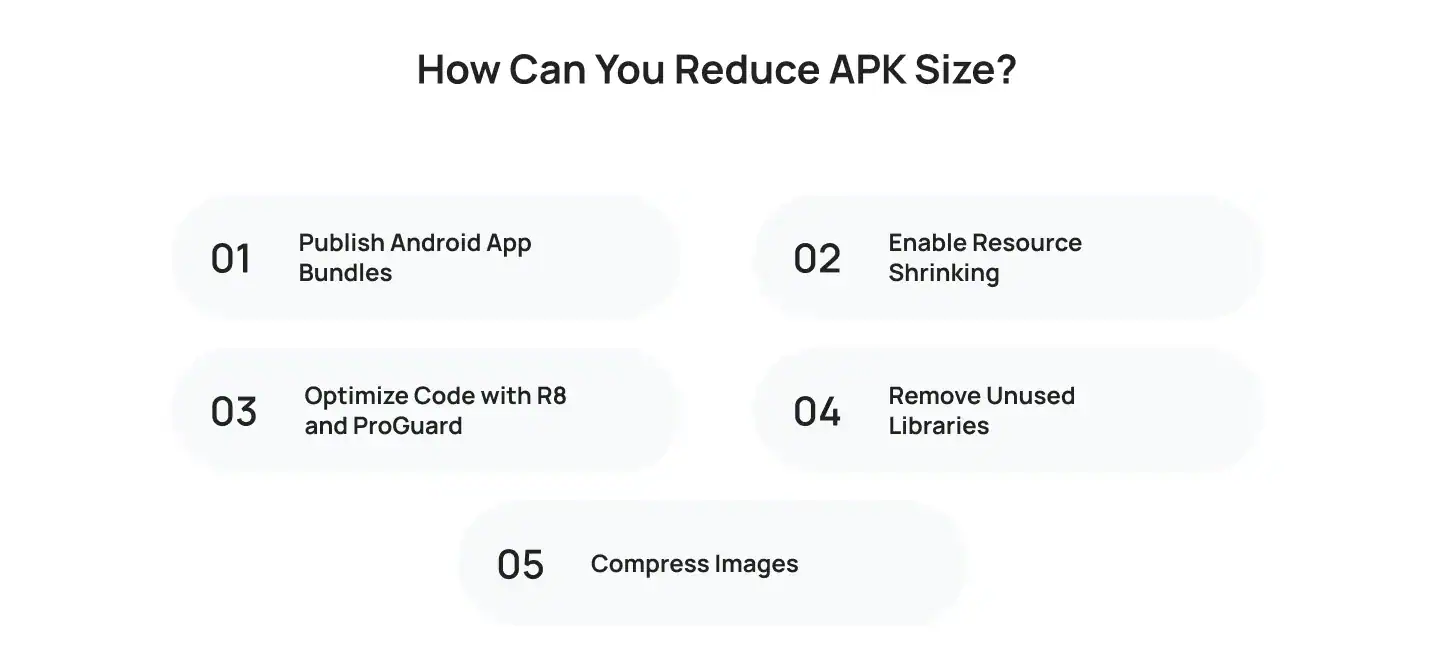
Publish Android App Bundles
Google recommends publishing applications as Android App Bundles instead of traditional APK files. Android App Bundles generate optimized installation packages for each device, ensuring users download only the resources their device actually needs.
This reduces download size without removing features or affecting functionality.
Enable Resource Shrinking
Many Android projects include images, layouts, language files, and other resources that are never used in production. Resource shrinking automatically removes these unnecessary files during the build process, helping reduce the final application size.
Optimize Code with R8 and ProGuard
R8 removes unused code, optimizes compiled classes, and shrinks applications before release. Projects that also use ProGuard benefit from additional optimization and code obfuscation, making applications both smaller and more secure.
Remove Unused Libraries
Third-party libraries simplify development, but they also increase application size. Review project dependencies regularly and remove SDKs or libraries that no longer provide value. Eliminating unused packages reduces APK size while improving build performance.
Compress Images
Images often account for a significant portion of an application’s size. Replace PNG files with WebP where appropriate and compress graphics before including them in your project. Smaller image assets reduce download size without noticeably affecting visual quality.
Which Android Studio Tools Help Optimize Performance?
You can’t improve performance if you don’t know what’s slowing your app down. That’s why Android Studio includes several built-in tools that help developers identify bottlenecks before users experience them. Regular testing with these tools helps you find issues early, validate performance improvements, and release more stable applications.
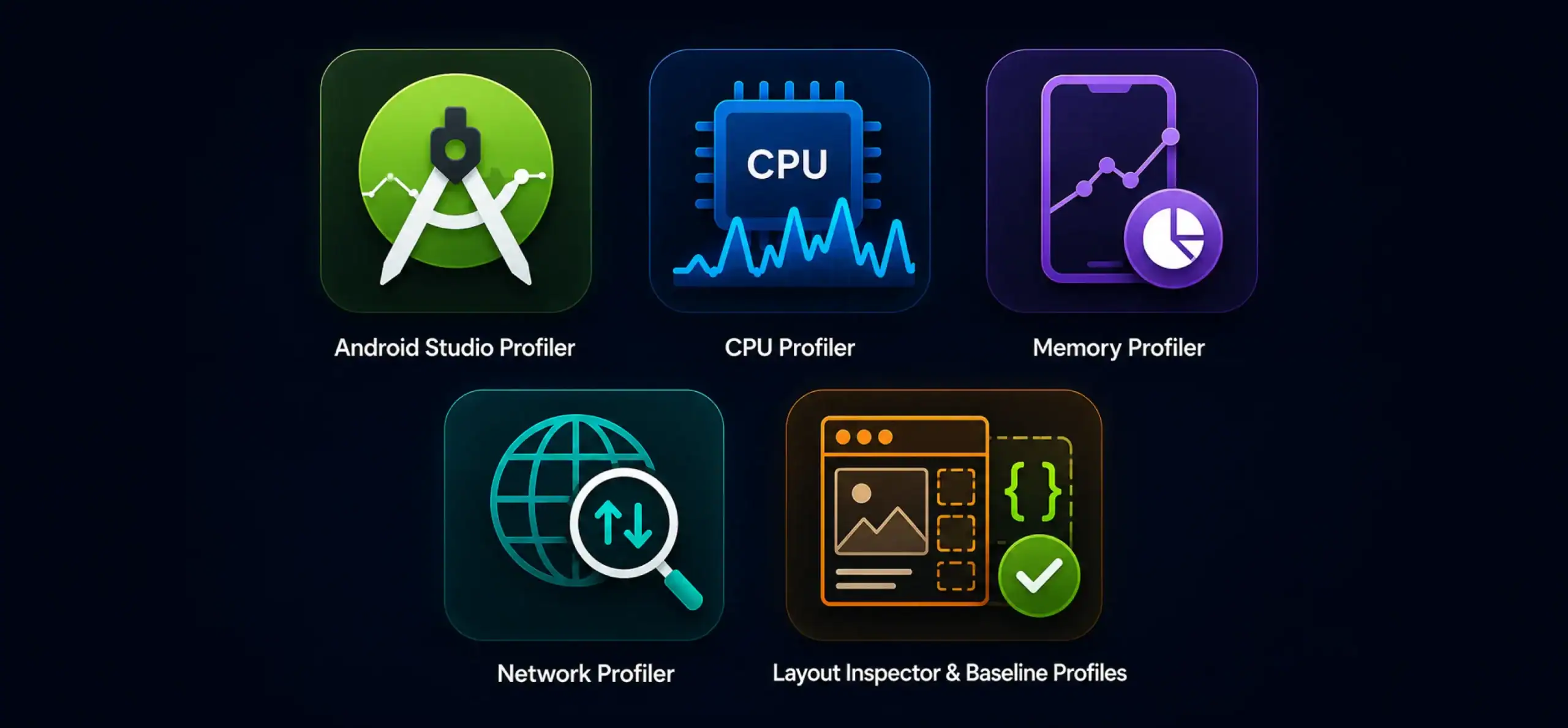
Android Studio Profiler
Android Studio Profiler gives you a complete view of how your application uses CPU, memory, network, and energy resources. Instead of guessing where performance issues exist, you can monitor the app in real time and identify areas that need attention. Many development teams use the profiler throughout the development process instead of waiting until the final testing stage.
CPU Profiler
The CPU Profiler shows which methods consume the most processing power. If certain functions take longer than expected, you can optimize them before they affect users. This tool is especially useful for identifying expensive operations, background tasks, and unnecessary calculations that reduce overall performance.
Memory Profiler
Memory issues are one of the leading causes of crashes on Android devices. The Memory Profiler helps you monitor heap usage, detect memory leaks, and analyze object allocations. Regular memory analysis allows developers to optimize resource usage before the app reaches production.
Network Profiler
Every API request affects loading speed. The Network Profiler lets you inspect requests, response sizes, and network activity in real time. This makes it easier to identify slow endpoints, unnecessary requests, and opportunities to improve caching or compression.
Layout Inspector and Baseline Profiles
Layout Inspector helps visualize your application’s UI hierarchy and detect deeply nested layouts that slow rendering. Developers can quickly identify unnecessary views and simplify complex screens for better performance.
Baseline Profiles improve startup speed by allowing Android to precompile frequently used code paths. As a result, applications launch faster and feel more responsive, especially after installation or updates.
For example, a productivity app used Android Studio Profiler to identify rendering delays caused by complex layouts. After simplifying the interface and optimizing rendering, scrolling became noticeably smoother across multiple Android devices.
How Should You Test Android App Performance Before Release?
Performance testing should never be the final task before publishing your app. It should happen throughout development so you can identify issues early and avoid expensive fixes later. Testing across different devices, operating system versions, and network conditions ensures users receive a consistent experience regardless of the hardware they use.
Test on Real Android Devices
Emulators are useful during development, but they can’t fully replicate real-world usage. Testing on physical devices helps identify hardware-specific issues, battery consumption, touch responsiveness, camera performance, and network behavior.
A banking application, for example, should be tested on devices from manufacturers like Samsung, Google Pixel, Motorola, and OnePlus to ensure consistent performance across different screen sizes and hardware configurations.
Perform Load and Stress Testing
Applications often behave differently when handling large amounts of data or multiple simultaneous users. Load testing measures how your app performs under expected traffic, while stress testing pushes it beyond normal limits to identify breaking points.
These tests help developers detect bottlenecks before users experience slowdowns during peak usage.
Benchmark Performance Regularly
Benchmarking allows you to compare application performance across different releases. By measuring startup time, frame rendering, memory usage, and network performance after every major update, you can quickly identify regressions introduced by new features.
Automated benchmarking also helps maintain consistent quality throughout the development process.
Automate Performance Testing
Manual testing alone isn’t enough for modern Android applications. Automated performance tests verify that updates don’t introduce new bottlenecks or reduce application stability. Integrating these tests into your CI/CD pipeline helps catch issues before they reach production.
Google continues to emphasize testing across multiple Android devices because the platform supports thousands of hardware combinations with different processing power, memory, and screen sizes.
What Metrics Should You Monitor After Launch?
Publishing your app isn’t the end of optimization. User behavior changes, new Android versions are released, and additional features affect performance over time. Monitoring key performance metrics helps you identify issues quickly and improve the user experience with every update.
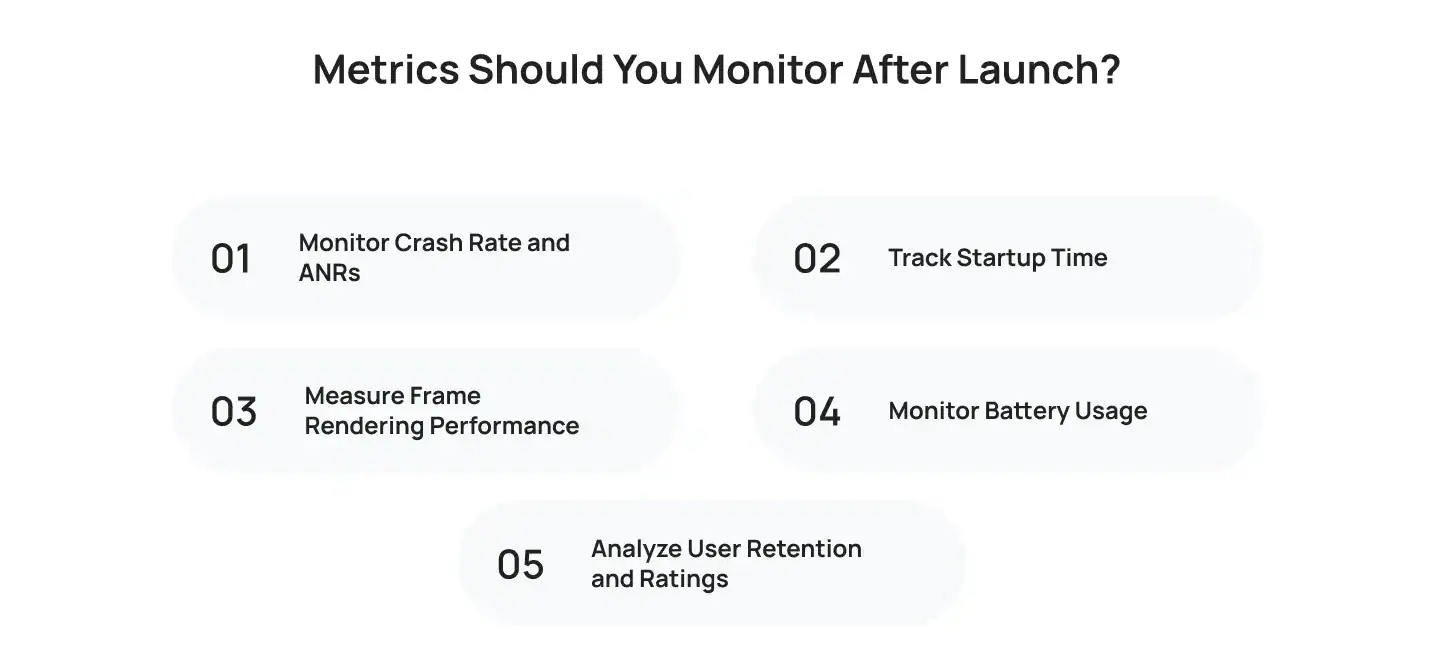
Monitor Crash Rate and ANRs
Crash reports reveal stability issues that users encounter in production. You should also monitor ANRs (Application Not Responding errors), which occur when the app becomes unresponsive for an extended period.
Reducing crashes and ANRs improves user satisfaction and supports better Play Store ratings.
Track Startup Time
Startup performance directly affects first impressions. Measure how long your app takes to become interactive after users tap the icon. If startup time increases after an update, investigate recent code changes before releasing additional features.
Measure Frame Rendering Performance
Dropped frames create laggy scrolling and choppy animations. Monitoring frame rendering helps developers maintain smooth interactions across devices with different hardware capabilities.
Monitor Battery Usage
Even well-optimized applications can consume more battery after new features are added. Track battery usage regularly to ensure background tasks, location services, and network activity remain efficient.
Analyze User Retention and Ratings
Performance improvements should translate into better user engagement. Monitor retention rates, session duration, and Play Store reviews alongside technical metrics to understand how performance affects user satisfaction.
For example, a SaaS application improved customer retention after using Firebase Performance Monitoring to identify crashes affecting a specific Android version. Fixing those issues resulted in higher ratings and fewer support requests.
What Are the Most Common Android App Optimization Mistakes?
Many Android performance issues don’t come from complicated code. They develop because small optimization tasks are ignored throughout development. Fixing these common mistakes early helps you build a faster, more stable application and deliver a better user experience.
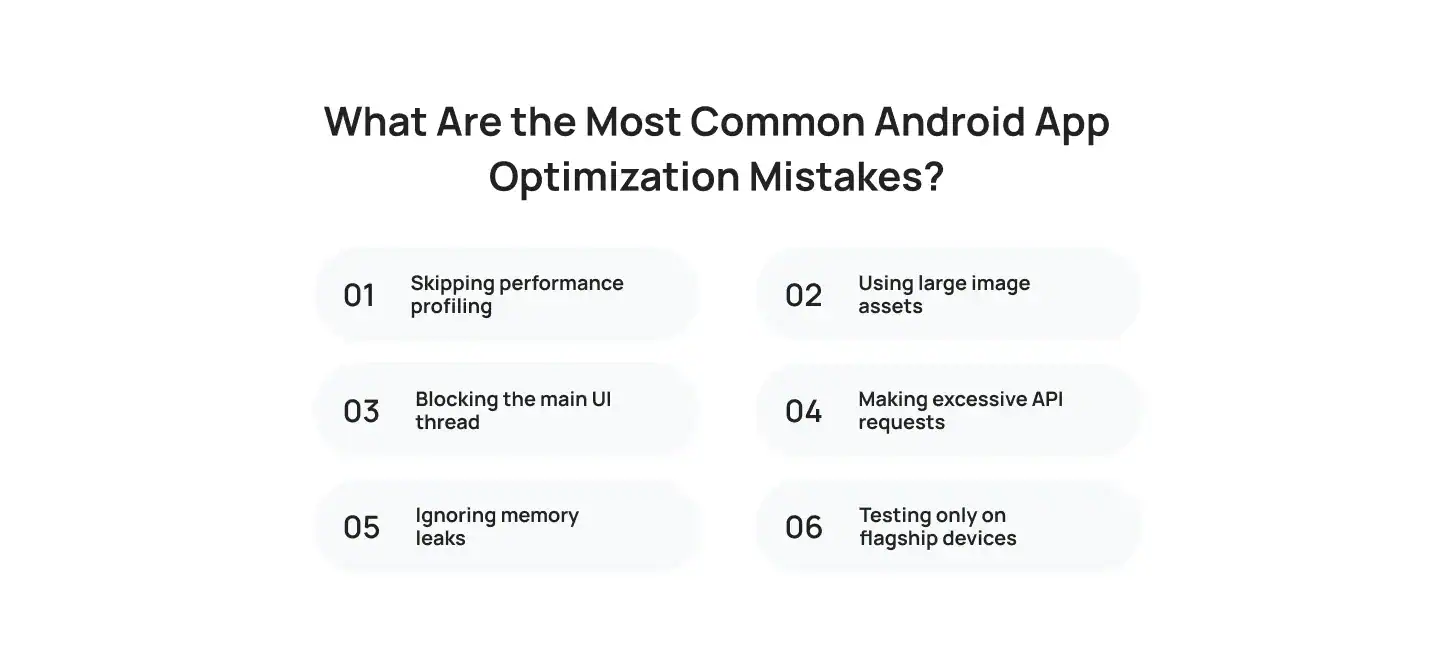
Some of the most common Android app optimization mistakes include:
- Skipping performance profiling: Developers often release apps without analyzing CPU, memory, or network performance, making issues harder to identify later.
- Using large image assets: Uncompressed images increase loading times, consume more memory, and make scrolling less responsive.
- Blocking the main UI thread: Running database queries or network requests on the main thread causes freezing and poor responsiveness.
- Making excessive API requests: Sending unnecessary network calls increases latency, battery usage, and mobile data consumption.
- Ignoring memory leaks: Objects that remain in memory after they’re no longer needed eventually cause crashes and reduced performance.
- Testing only on flagship devices: High-end smartphones often hide performance issues that become obvious on older or mid-range Android devices.
For example, a travel application experienced declining Play Store ratings because it was optimized only for premium smartphones. After the development team reduced image sizes, optimized API requests, and expanded testing across Samsung, Motorola, and budget Android devices, app responsiveness improved significantly, leading to better user reviews and higher retention. Following Google’s Play quality guidelines and regularly profiling your app helps prevent these issues before they reach users.
What Is the Android App Optimization Checklist Before Publishing?
Publishing an Android app without a final performance review can lead to crashes, poor ratings, and frustrated users. Before submitting your app to Google Play, verify that every critical performance area has been tested and optimized. A structured checklist helps you catch issues early and ensures your app delivers a smooth experience from day one.
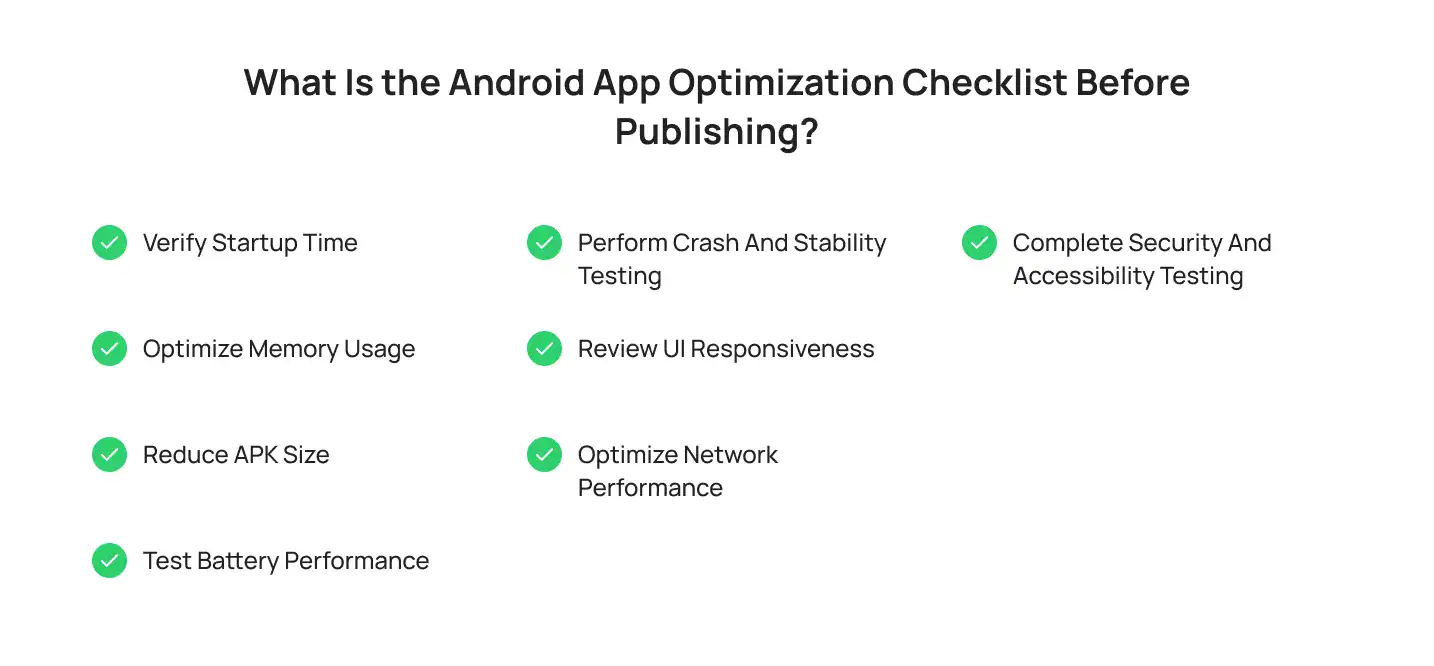
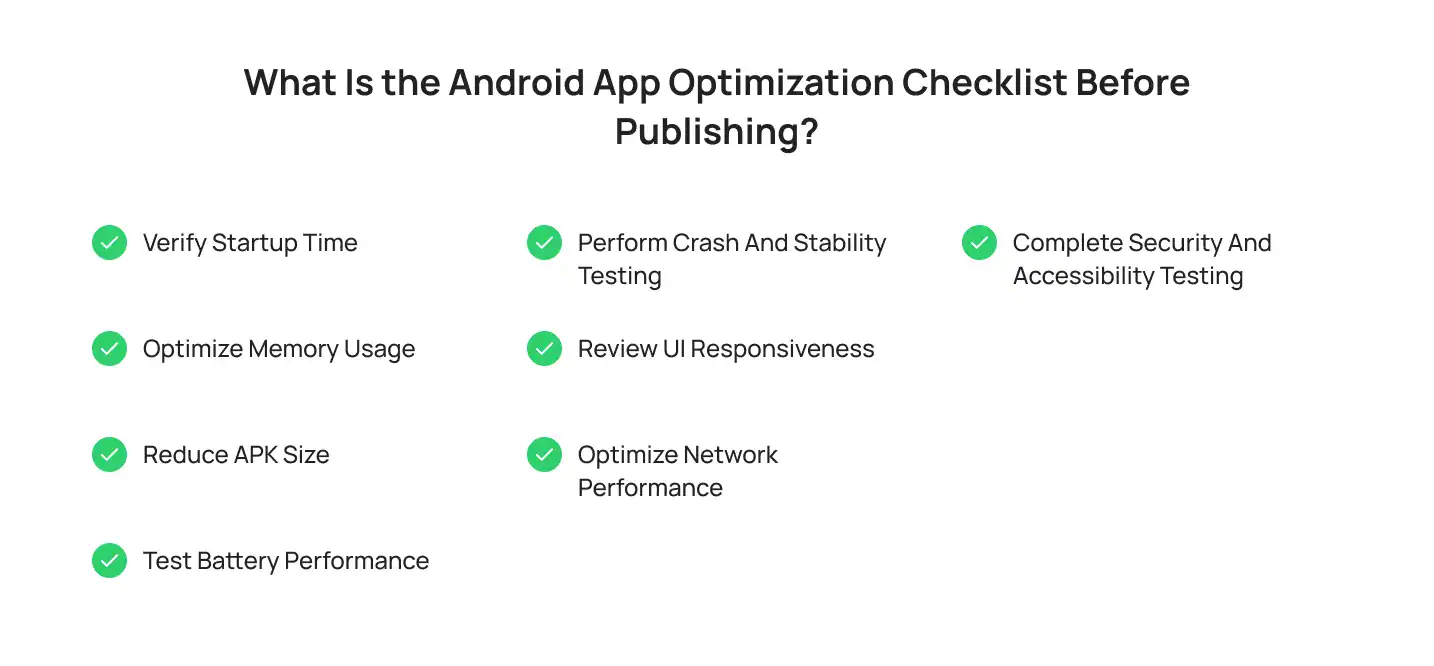
Before publishing, make sure you complete the following checklist:
- Verify startup time: Ensure the app launches quickly and becomes interactive within a few seconds.
- Optimize memory usage: Check for memory leaks, reduce unnecessary allocations, and monitor heap usage.
- Reduce APK size: Use Android App Bundles, resource shrinking, and image compression to minimize download size.
- Test battery performance: Confirm that background tasks, location services, and network requests don’t drain the battery.
- Perform crash and stability testing: Identify and fix crashes, ANRs, and other stability issues before release.
- Review UI responsiveness: Test scrolling, animations, and screen transitions to ensure smooth interactions.
- Optimize network performance: Verify API response times, caching, offline functionality, and data compression.
- Complete security and accessibility testing: Validate permissions, secure data storage, and accessibility compliance.
Google recommends testing your app across multiple Android devices and OS versions before publishing. Following a comprehensive release checklist reduces post-launch issues, improves Play Store ratings, and creates a better experience for every user.
Why Should Businesses Invest in Android App Optimization Instead of Only Adding New Features?
| Business Benefit | Why It Matters |
| Better User Experience | Fast loading times, smooth navigation, and responsive interactions keep users engaged and create a positive first impression. |
| Higher User Retention | Users are more likely to return to an app that performs reliably instead of one that crashes or feels slow. |
| Improved Google Play Ratings | Better performance leads to fewer complaints, higher ratings, and more positive reviews, which can increase app visibility. |
| Lower Maintenance Costs | Optimizing performance early reduces technical debt and minimizes expensive fixes after launch, making updates easier to manage. |
| Increased Revenue | Faster apps encourage users to complete purchases, subscriptions, and other in-app actions, improving conversion rates. |
| Easier Scalability | A well-optimized app handles growing user traffic and new features more efficiently without sacrificing performance. |
| Stronger Customer Loyalty | When two apps offer similar features, users typically choose the one that launches faster and provides a smoother experience. |
| More Predictable Development Costs | Making optimization part of the Android development lifecycle helps teams estimate the pricing of Android apps more accurately by reducing post-launch performance fixes. |
If you’re building a new product, understanding the Android startup advantages of performance-first development helps you launch a more reliable application. Staying informed about the future Android development landscape also ensures your app remains compatible with new Android versions, devices, and user expectations.
Why Choose Cubix for Android App Optimization?

Building a successful Android app requires more than adding features. It requires continuous optimization throughout the development process. With 18+ years of experience, 1,300+ digital products delivered, 600+ global clients, and a team of 350+ experts, Cubix helps businesses build fast, stable, and responsive Android applications. As a trusted Android application development company, we combine modern Android technologies with proven optimization techniques to improve startup speed, app performance, battery efficiency, and long-term reliability.
Conclusion
Android app optimization is an ongoing process that directly affects user satisfaction, app ratings, and business growth. Every improvement, whether it’s reducing startup time, optimizing memory usage, improving battery efficiency, or speeding up network requests, creates a better experience for your users.
The best-performing apps don’t wait until the final testing phase to focus on performance. They integrate optimization throughout the Android development lifecycle, monitor key metrics after launch, and continue improving as Android platforms evolve. By making performance a priority from day one, you can build Android applications that are faster, more reliable, and ready to support long-term business success.
Frequently Asked Questions
1. What is Android app optimization?
Android app optimization is the process of improving an app’s speed, responsiveness, stability, memory usage, battery efficiency, and overall user experience across Android devices.
2. Why is Android app optimization important?
Optimization improves app performance, increases user satisfaction, reduces crashes, boosts Play Store ratings, and helps retain users over the long term.
3. How can I make my Android app load faster?
Reduce unnecessary startup tasks, optimize layouts, compress assets, implement lazy loading, and profile your app regularly using Android Studio tools.
4. What tools help optimize Android app performance?
Popular tools include Android Studio Profiler, CPU Profiler, Memory Profiler, Network Profiler, Layout Inspector, Baseline Profiles, and Firebase Performance Monitoring.
5. How do I reduce Android app battery consumption?
Use WorkManager and JobScheduler for background tasks, optimize location tracking, batch network requests, and minimize unnecessary background processing.
6. What is the ideal Android app startup time?
Most modern Android apps should become interactive within two to three seconds to provide a positive first impression.
7. How can developers reduce APK size?
Developers can reduce APK size by using Android App Bundles, enabling R8 and resource shrinking, removing unused libraries, and compressing image assets.
8. What should be included in an Android app optimization checklist?
A complete checklist should include startup performance, memory usage, battery efficiency, APK size, UI responsiveness, network optimization, crash testing, security, and accessibility verification.